
Getting Started with Naiku
On this page
Welcome to Naiku. Here’s how to go from a new account to your first results in a week or two. Each step links to the full how-to.
1. Sign in and check your classes
- Your school uses Naiku: sign in the way your school set up: Infinite Campus, PowerSchool, Clever, ClassLink, Google, or a username and password. Your classes and students are probably already there. Click Classes to check. See Teacher Sign-In and Password.
- On your own: sign up free at a.naiku.net/sign_up, then set up your classes.
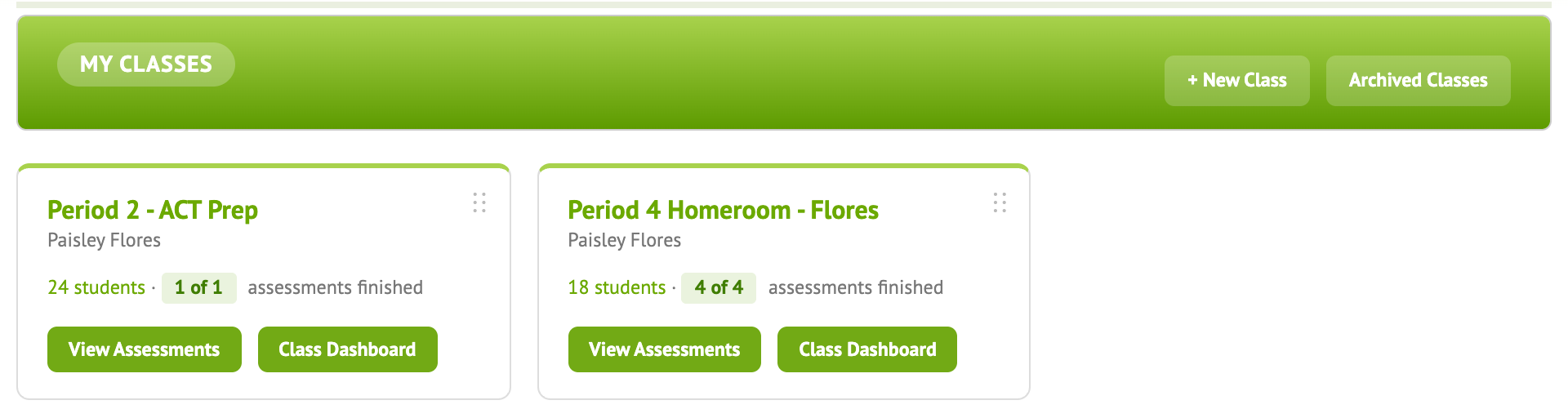
The first time you open a page, a short tour points out what’s on it.
2. Give a short quiz you already have
Make a Quick Key test from a quiz you already have as a PDF or Word file. Enter the answer key, assign it to your class and have students take it. Follow along on Watch Progress.
3. Look at the results
Close and Score the test. Class Results shows each student’s score, and Item Analysis shows which questions were missed most.
4. Build your own test
Create a test in Naiku with different item types, images and standards. Try Confidence and Reflection, so students rate how sure they are and look back at their answers.
5. Make it part of your routine
- Check the Class Dashboard to see how each class is doing by standard over time.
- Share tests and compare results with your colleagues in Teams.
- Use the Assessment Options to allow retakes, set time limits or require access codes.
For ideas on using Naiku well in the classroom, read Keys to Success with Naiku.
Questions along the way? Email support@naiku.net.