
Signing In with Google
On this page
If your school uses Google, you can sign in to Naiku with your Google account instead of a separate Naiku password.
Sign in
- Go to a.naiku.net.
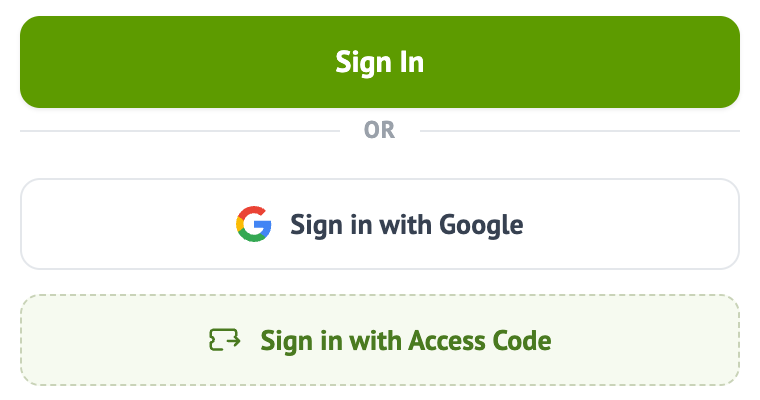
- Click Sign in with Google.
- Choose your school Google account.
If the email on your Naiku account matches your Google email, you’re signed in, and your accounts stay linked from then on.
If Naiku says your account isn’t linked
You’ll see You have not linked your account with a Google ID. This usually means your Naiku account has a different email, or none.
- Click Click here to login and link it in that message.
- Sign in with your Naiku username and password.
- Choose your Google account when Google asks.
Don’t know your Naiku password? Use Forgot Password? on the sign-in page, or email support@naiku.net. Students can ask their teacher to reset it.
Link or unlink from your profile
- Sign in to Naiku and click your name at the top.
- Click Link to Google ID. If your account is already linked, the button says Unlink Google ID.

Google Classroom
Once your Google account is linked, your profile may show a link to import/update your classes from Google Classroom. It needs a valid Google Classroom account.
Add a sign-in link to your school website
To send people straight to Google sign-in, link to https://a.naiku.net/users/auth/google_oauth2?source_action=sign_in.