
Setting Up Classes and Students
On this page
Start by finding out whether your classes come from your school’s system. Most do.
If your school rosters Naiku
Most schools connect Naiku to Infinite Campus, PowerSchool, Clever or ClassLink. Your classes and students are created for you and updated every night.
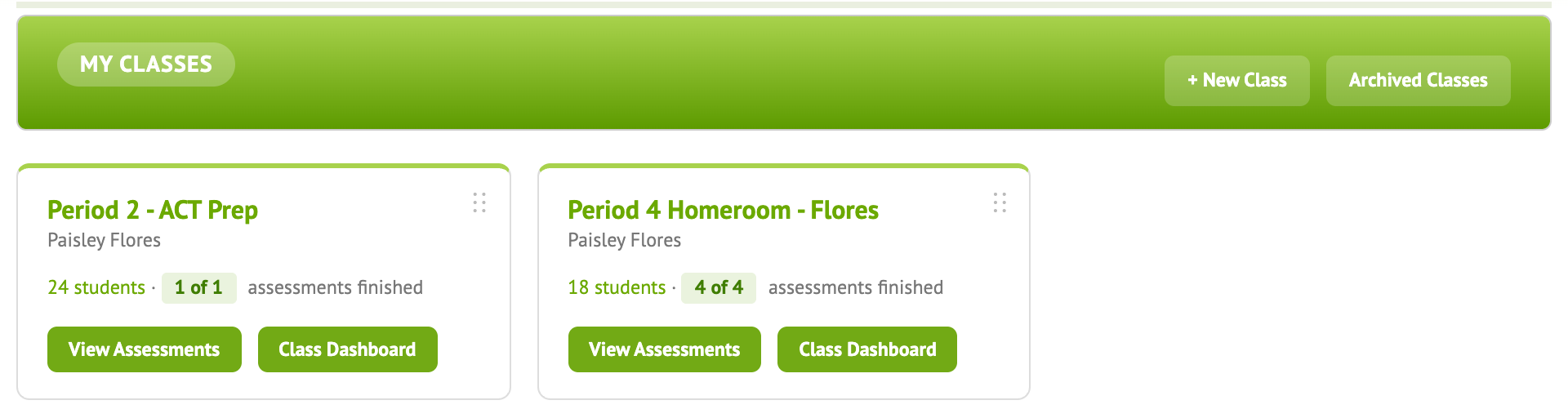
- Click Classes and check that your classes are all there with the right students.
- Something missing or wrong? Fix it in your student information system. The change reaches Naiku the next night. If it still isn’t right after that, ask your Naiku admin or email support@naiku.net.
If you set up your own classes
- Click Classes, then + New Class.
- Enter a name, e.g. Science Period 3. Grade and subject are optional.
- Click Create. Repeat for each class.
Add students
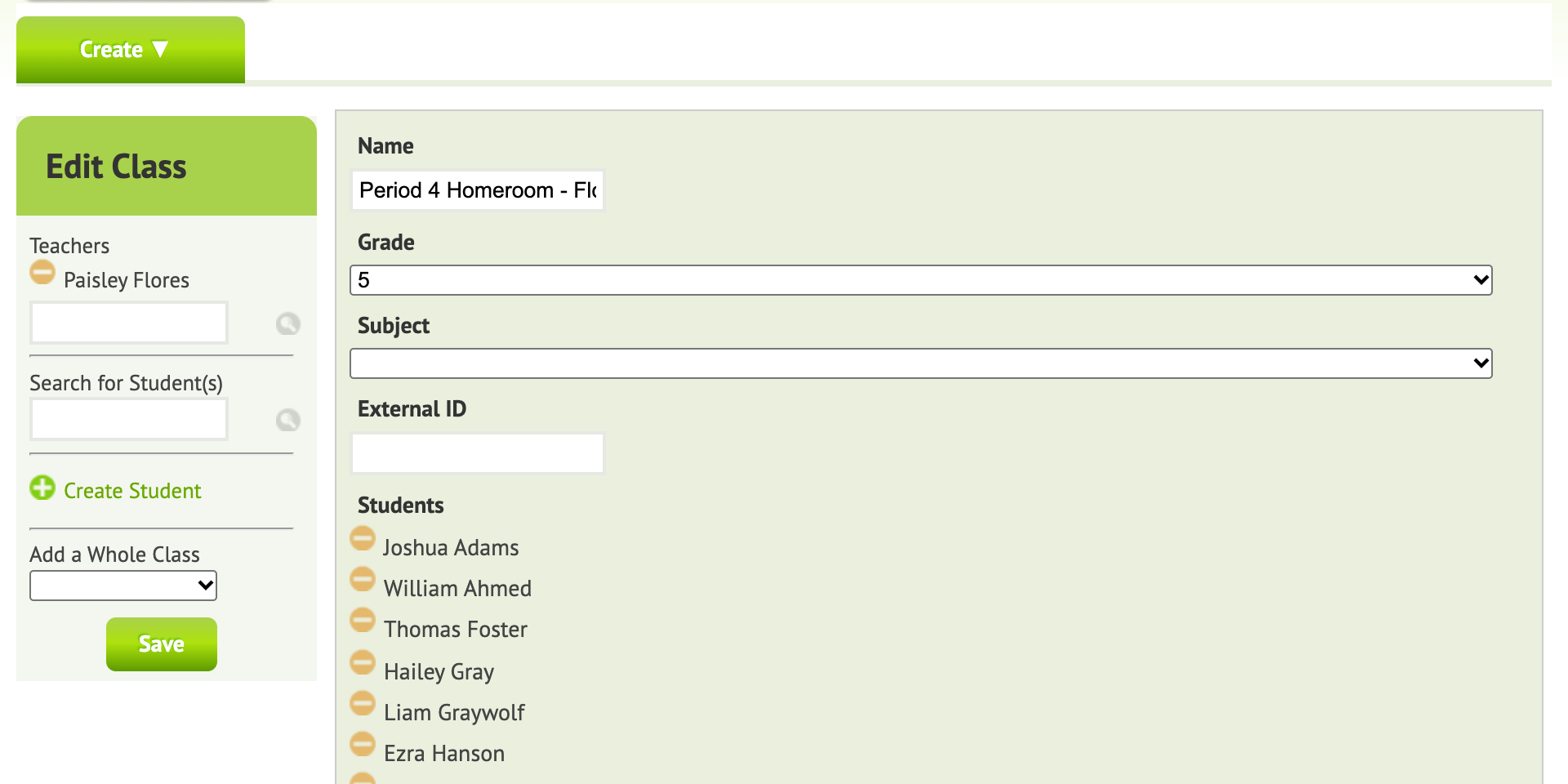
- Open the class and click Edit Class, on the right under the class name.
- To add a student who’s already at your school, type their name under Search for Student(s) and pick them from the list. Add a Whole Class adds every student from another class at once.
- If the student isn’t in Naiku yet, click Create Student. Enter their name, a username, an email (optional) and a password, and save. The student is added to your class and your school, so other teachers can find them too.
- Save the class.
Remove a student
In Edit Class, click the remove icon next to the student’s name and save. Their past results stay in your reports.
How students join
- Automatically, from your school’s system. Students sign in through that system or with Google. There’s nothing for you or your students to do.
- With an access code, for classes you made in Naiku:
- Create the class and assign a test to it.
- Give students the test’s access code, shown on Watch Progress.
- Students go to a.naiku.net, choose Sign in with Access Code and enter the code.
- The first time, they click Create an account and enter their first name, last name, an email (optional) and a password.
- You add them, using the steps above.
Students who join with a code are then in your class and your school. Next time, they can pick their name from the list after entering a code, or sign in with their username and password. Full steps: Students Who Sign In with an Access Code.
Next
Assign a test to your class. When a class is over, archive it instead of deleting it.