
Assign a Test
On this page
A test doesn’t reach students until you assign it.
Assign a test
- Click Assessments and open the test.
- Choose Actions ▼ → Assign. If the test has never been assigned, you can also click the Assign button.
- In the window, do one of these:
- Select one or more existing classes. Hold Ctrl (Windows) or Cmd (Mac) to pick several.
- Enter name to create new class, then add students afterward.
- Assign directly to your student(s). Type a name and pick the student. Only students already in Naiku can be found.
- Click Assign Assessment.
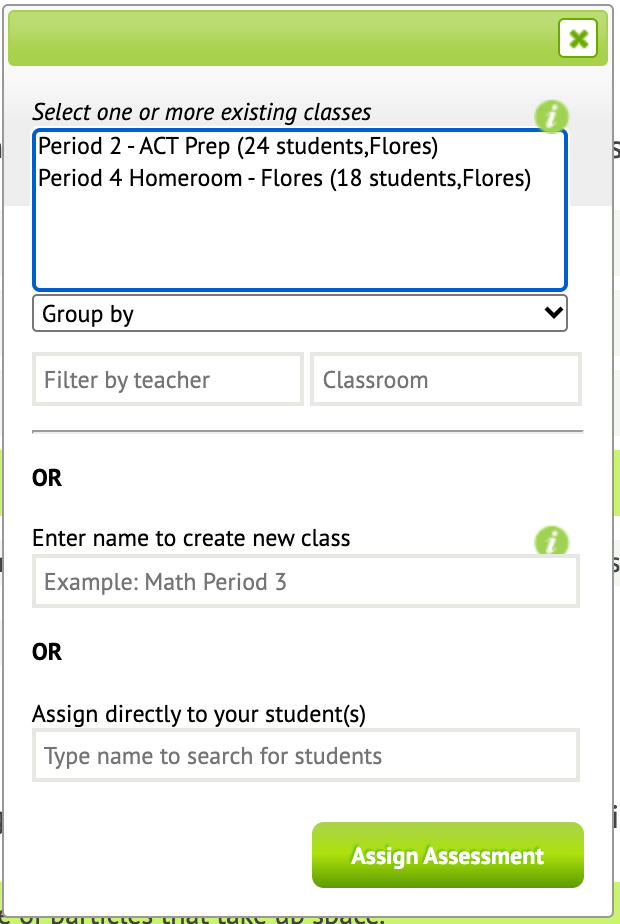
Each class gets its own copy of the test, with its own access code and results. Students see it right away, unless you set a starting time.
Share the access code
Open Watch Progress for the class. The code is at the top, and Show large makes it big enough to project.
Students need the code to start only if you turned on Access Code. Students without an account can also use it to sign in.
Tell students to pick their name from the list. If they click Create an account when they already have one, they end up with a second account and their results are split.
Set a testing window
A testing window controls when students can take a test, for example only during Tuesday’s class.
- Open the class’s copy of the test and choose Actions ▼ → Edit.
- Click Advanced Settings, next to Options.
- Enter a Starting date and time, a Closing date and time, or both.
- Click Save Settings, then Save Assessment.
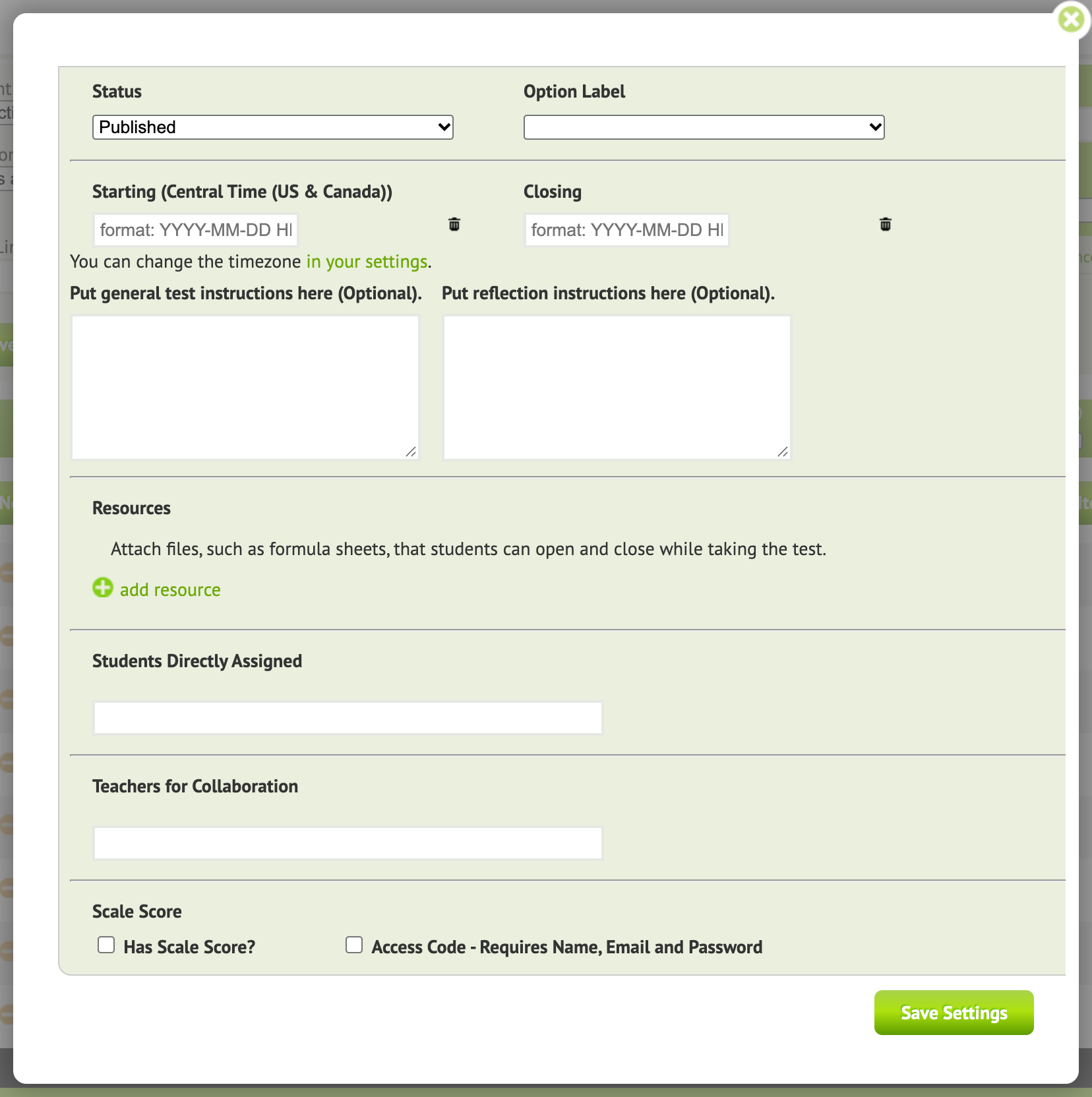
- The window applies to this class’s copy only. To use the same window for another class, set it on that class’s copy too.
- Students can’t start before the starting time or after the closing time, so remind them to finish before it closes.
- Times use the Time zone in your profile. Click your name at the top to check it.
- The closing time doesn’t score the test. You still click Close & Score.
- Need to let a student in after the window? Change the closing time, or give them the test directly.
Give a test to individual students
Use this for a make-up test, a student who joined late, or a small group that tests at a different time. You can use Assign directly to your student(s) in the Assign window, or add students to a test that’s already assigned:
- Open the test and choose Actions ▼ → Edit.
- Click Advanced Settings.
- Under Students Directly Assigned, type at least three letters of the student’s first or last name, and pick the student from the list. Repeat for each student.
- Click Save Settings, then Save Assessment.
The students now see the test when they sign in, under Other Assessments (“Assigned directly to you, not through a class”) rather than under a class.
To find tests you’ve given this way, open Assessments → Filter ▼ → Directly assigned. To remove a student, open Advanced Settings again, remove the name and save.
While students test
Watch Progress updates live. You can see who hasn’t started, who’s working, how far along they are and who has finished.
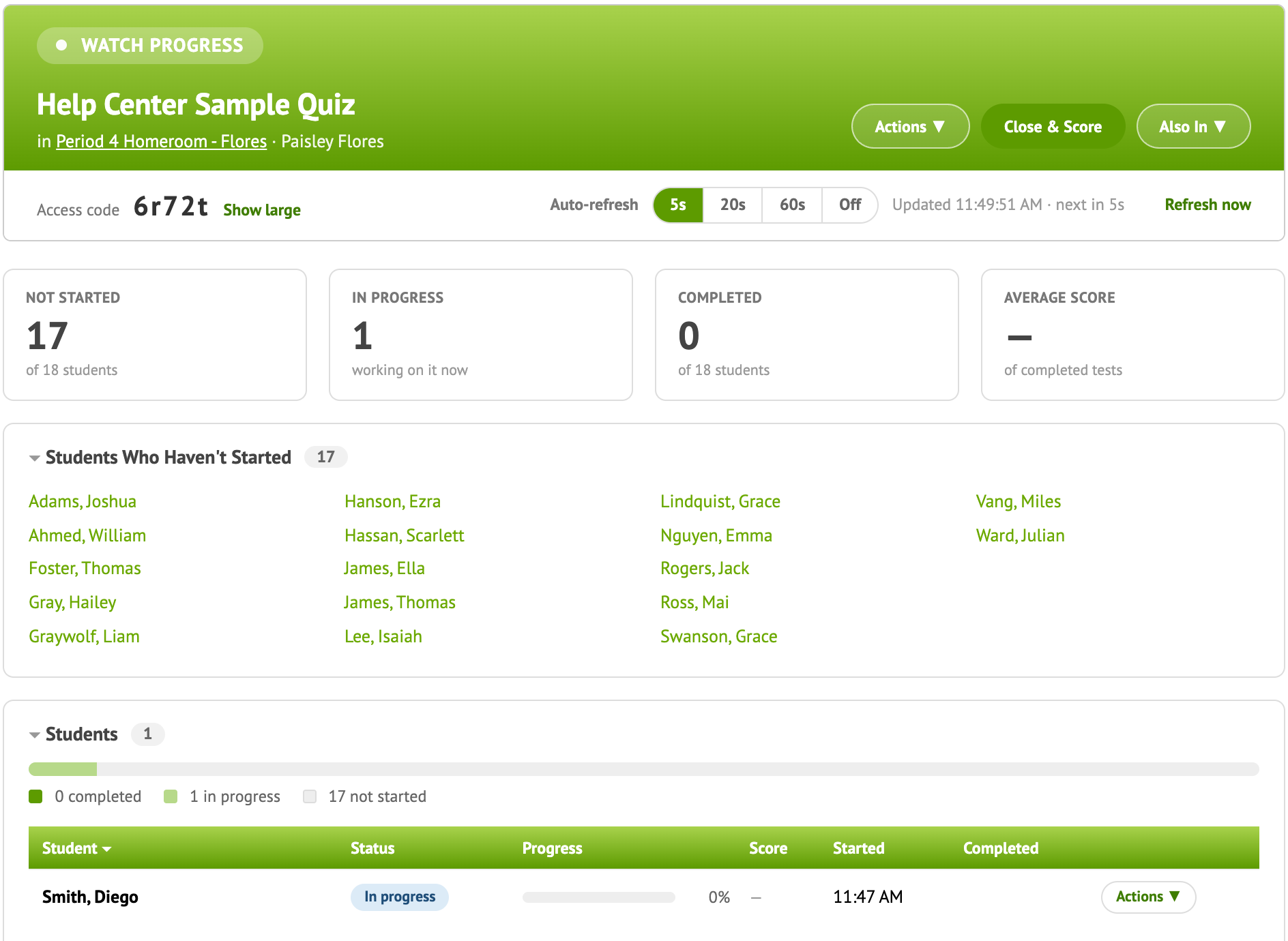
When everyone is done, Close & Score.