
Student Test Taking in Naiku
This page walks through a test from the student’s side, so you can guide your class and help when someone gets stuck. It’s a good one to show before their first Naiku test. To see it yourself, preview a test.
Starting
- Students sign in to Naiku and click their class. (Tests given to individual students are under Other Assessments.)
- They click Take test next to the test.
- If the test needs an access code, they enter the code you give them and click Start the Assessment.
- If you turned on Ask for Prediction, they first predict their score.
Answering
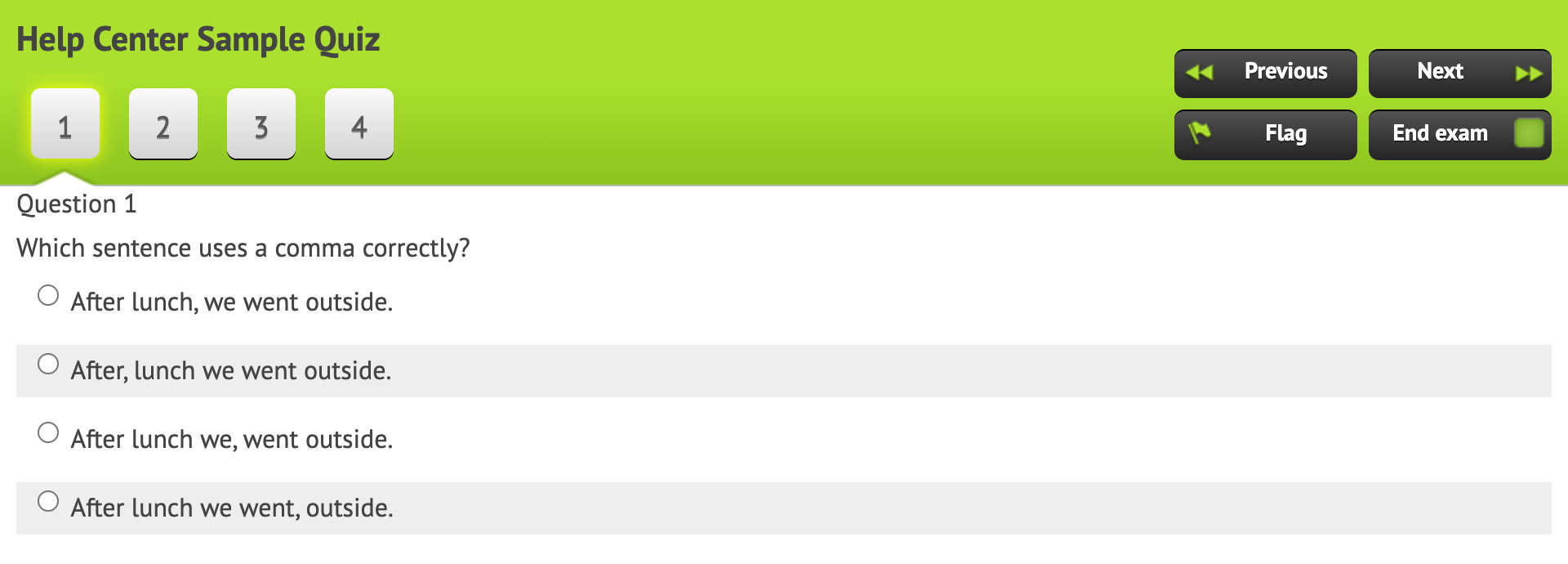
- Previous and Next move between questions, or students click a question number to jump to it.
- Flag marks a question to come back to. Unflag removes the flag.
- If you turned on Ask for Confidence, students tap how sure they are after each answer.
- Answers are saved as students go.
Tools
Which tools a student sees depends on how you set up each question:
- Choice eliminator: cross out answer choices they’ve ruled out.
- Highlight: select words to highlight them; Clear removes the highlights.
- More (Tell-Me-More): a box to explain their answer.
- Calculator: a Desmos basic, scientific or graphing calculator. See Calculators.
- Resources: files such as a formula sheet, if you attached any.
- Equation Editor: for typing math in an answer box.
On a timed test, a timer shows the time left. When time is up, Naiku tells the student and submits their answers.
Finishing
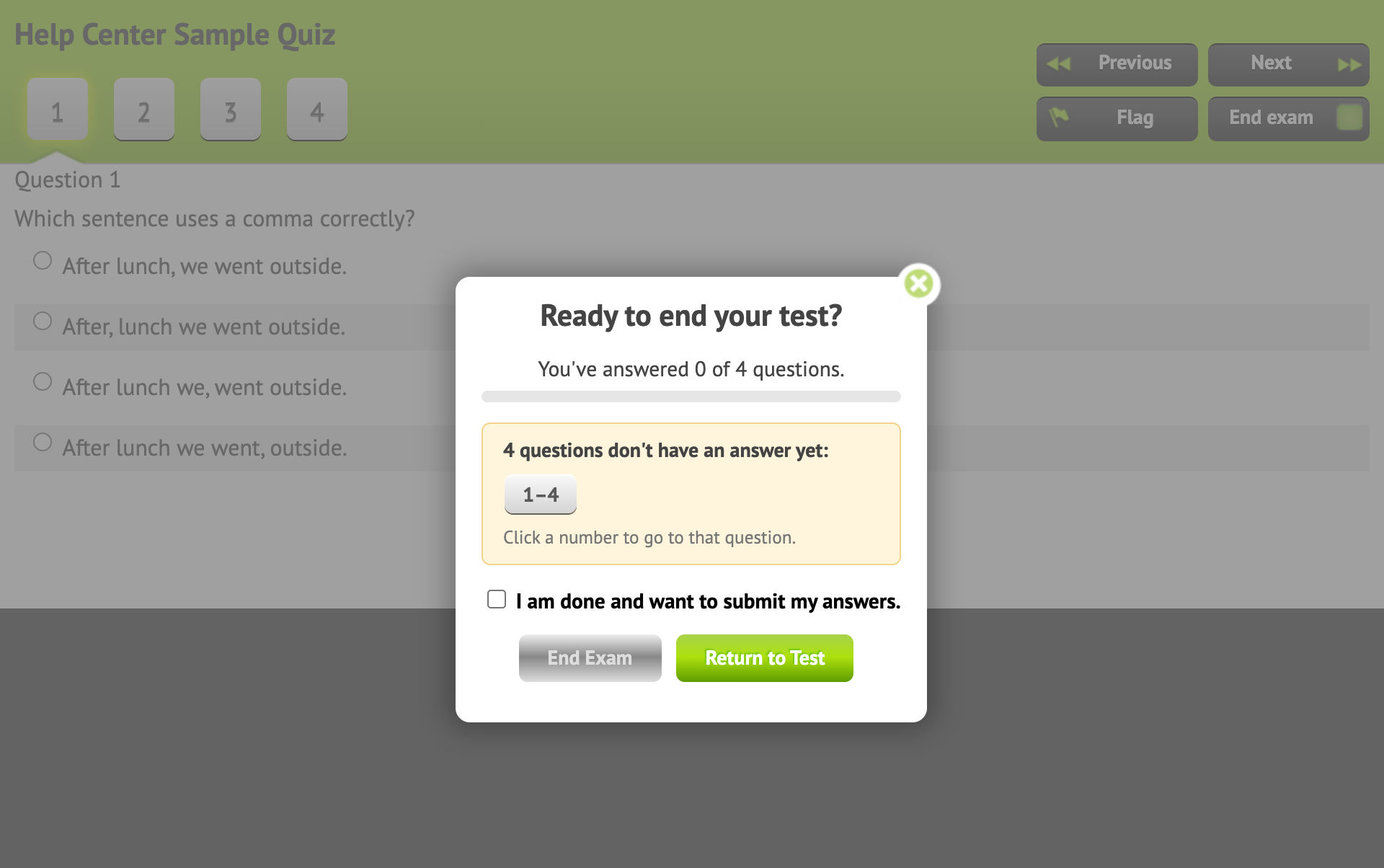
When they’re done, students click End Exam. Naiku shows how many questions they answered, lists any unanswered or flagged ones, and asks them to confirm: I am done and want to submit my answers, or Return to Test.
What they see next depends on the test’s Student Access setting: anything from a short “submitted” message to their full results and reflection. On a test that allows retakes, they also see their attempts and a Retake test button.
When a student needs help
| What happens | What to do |
|---|---|
| They can’t find the test | Check that it’s assigned to their class and its testing window is open. Tests given to one student are under Other Assessments. |
| It asks for a code | Give them the code from Watch Progress. |
| Their computer shut down or they lost connection | Have them sign back in and open the test. Their saved answers are still there while the test is open. |
| They ended the test too early | On Watch Progress, open the menu on their row and choose Re-take. This deletes their result, so they start over. |
| They missed the test and you already closed it | Re-open the test. |
| They forgot their password | Reset it. |