
Preview an Assessment
Preview a test before you give it to catch typos, wrong answer keys and images that don’t display.
- Click Assessments and open the test.
- Choose Actions ▼ → Preview.
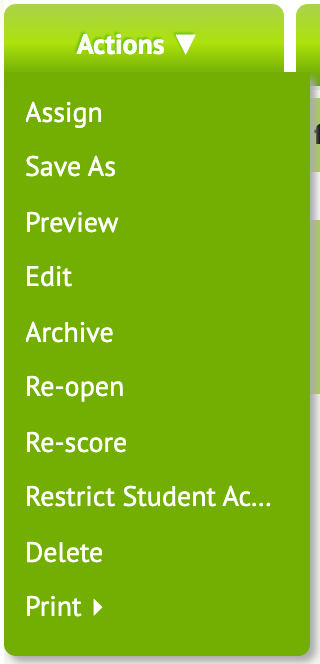
The test opens as students will see it, with the same questions and tools. Answer the questions and end the test to see the results screen. Your preview answers aren’t saved and don’t appear in any report.
What to check
- Images, audio, video and equations display correctly.
- Short-answer matchers accept the answers you expect.
- Calculators and other tools appear on the right questions.
- On a tablet or Chromebook, the test fits the screen.
Found a problem? Choose Actions ▼ → Edit and fix it.