
Test Security and Academic Honesty
On this page
We all want students to take their own tests, without help from classmates or other sources. Naiku gives you several ways to discourage cheating. Use the ones that fit your classroom.
Before the test
- Access Code. Students can’t start until you give them the code in class, so absent students can’t take the test from home and nobody can peek before class.
- Random Items and Random Options. Each student gets the questions, and the answer choices, in a different order, so neighbors’ screens don’t match. Set them in the test’s options.
- Algorithmic items. Each student gets different numbers on math questions.
- Starting and Closing times. The test is open only when you want it to be. See Set a testing window.
- Time Limit. Less time to look things up.
- Quick Key test files. If you don’t want students to see or download your test file, untick Display to Students on the file.
Require an access code
An access code keeps students from starting a test before class, from home while they’re absent, or after their class period while the test is still open.
- Open the test and choose Actions ▼ → Edit.
- Under Options, tick Access Code.
- Click Save Assessment, and assign the test as usual.
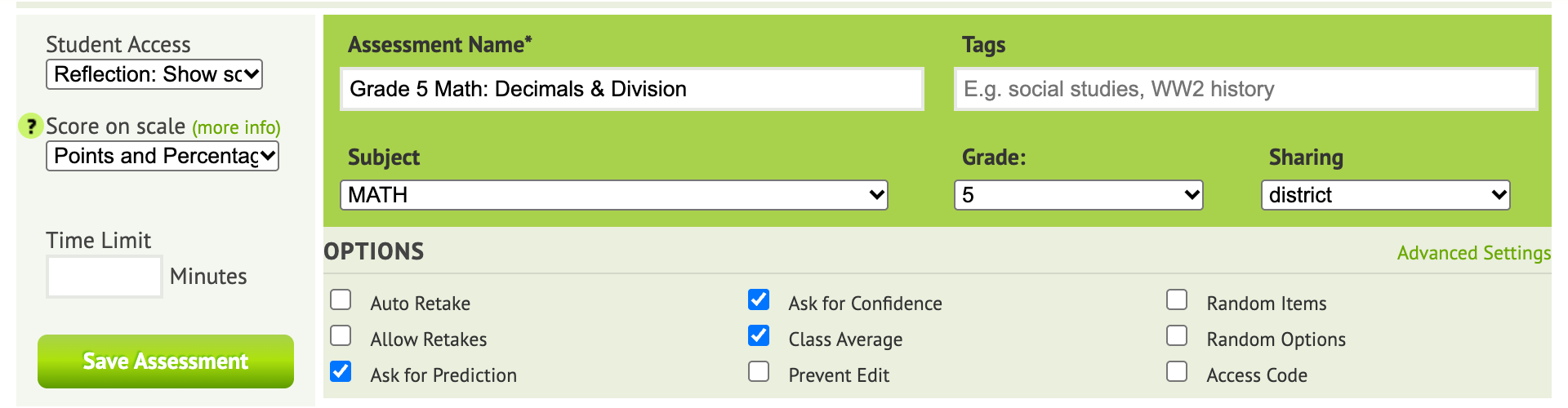
To give students the code, open Watch Progress for the class. The code is at the top. Click Show large to display it on a projector.
Students open the test and click Take test. Naiku asks them to “Enter the access code your teacher is giving you”. They type it and click Start the Assessment.
During the test
Watch Progress is your control center. It shows, live:
- who has started, how far each student is and who hasn’t started yet;
- flagged questions;
- an Away tag on any student who switched away from the test window, so you can check on them.
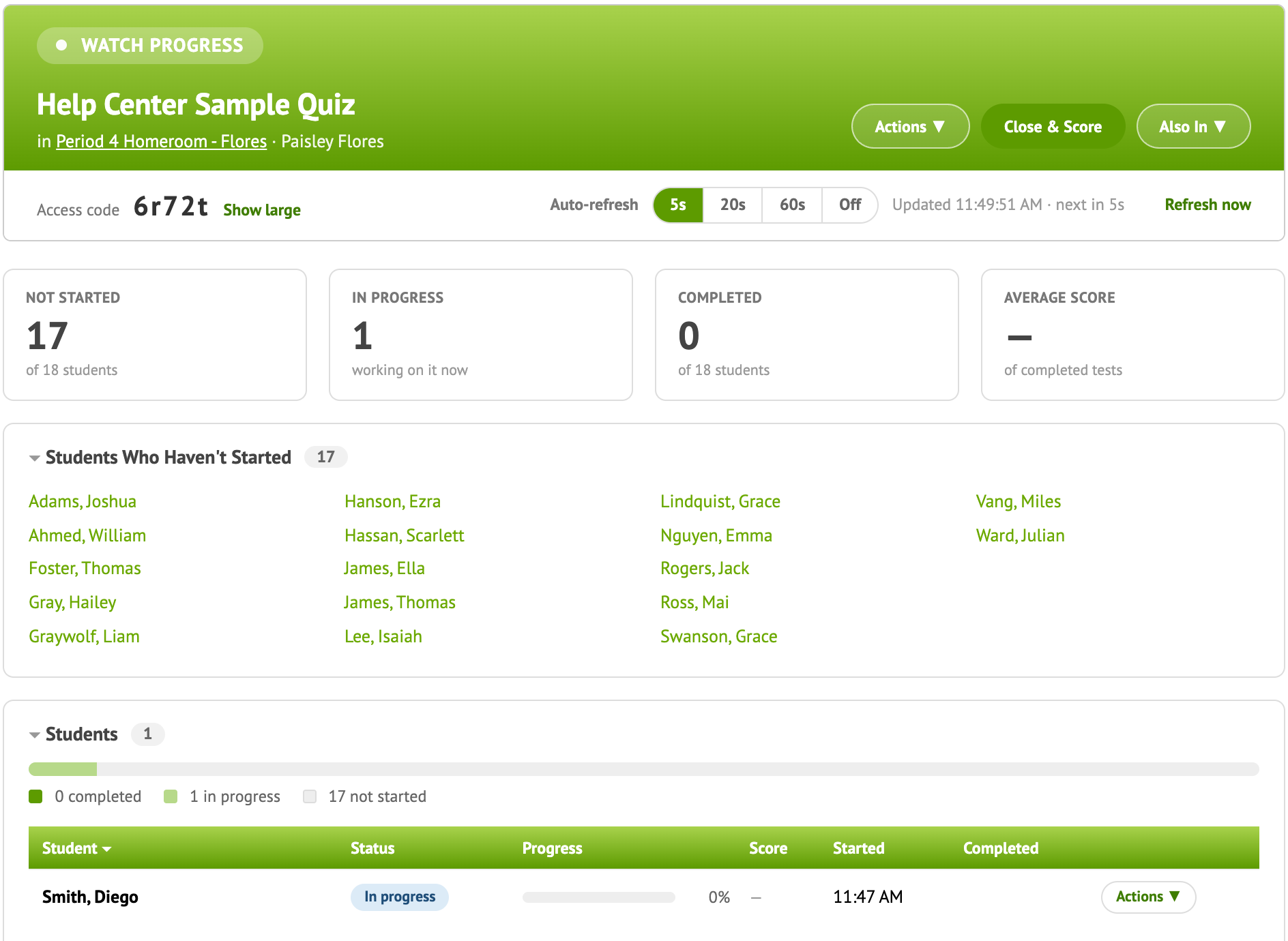
Reminding students that you can see their progress live is often enough.
Lockdown browsers. If your school uses a lockdown browser or Chromebook kiosk mode, students can use Naiku in it like any other website.
After the test
- Student Access. Hide correct answers until every class has taken the test.
- Prevent Edit keeps a common assessment identical for every class.
Talk with students about it
Tell students why their own answers matter: Naiku shows them, and you, exactly what they know and what to work on next. A copied answer hides what they need help with. Confidence ratings and reflection make this concrete, since students see the questions they were sure about but got wrong.