
Assessment Options
On this page
Each test has its own settings. Set them while you create the test, or later with Actions ▼ → Edit. Hover over any option in Naiku for a short explanation.
Student Access
What students see when they finish. See What Students See After a Test.
Options
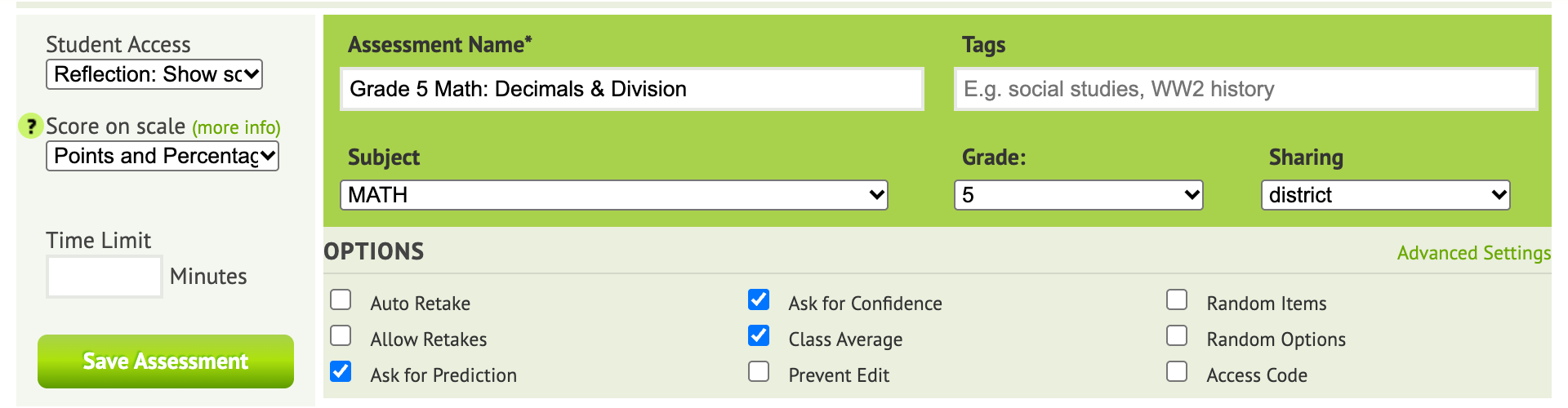
| Option | What it does |
|---|---|
| Time Limit | Minutes students have once they start. When time is up, Naiku tells them and submits their answers. |
| Auto Retake | Students who score at or below your cut score must retake the test. |
| Allow Retakes | Students can retake the test as many times as they like after seeing their results. See below. |
| Ask for Prediction | Before starting, students predict their score. |
| Ask for Confidence | After each answer, students tap how sure they are: Guessing, Kind of sure or Very sure. See Confidence and Reflection. |
| Class Average | Students see the class average next to their own score. |
| Prevent Edit | Locks the test so only you or an admin can change it. See Prevent Edits. |
| Random Items | Each student gets the items in a different order. |
| Random Options | Each student gets the answer choices in a different order. |
| Access Code | Students must enter the test’s code to start. See Test Security and Academic Honesty. |
| Learning Resources | After the test, students see the learning resources linked to the standards on it. See Learning Resources. |
| Email score report | Emails a PDF score report to the student, to you, or both, when a student finishes. |
Allow Retakes
See Let Students Retake a Test for all your options. With Allow Retakes on, a Retakes row appears:
- Score that counts: Highest score (the default), Latest attempt or First attempt. That score is the one in reports and the one sent to your gradebook.
- Max attempts: leave blank for unlimited.
Advanced Settings
Click Advanced Settings for:
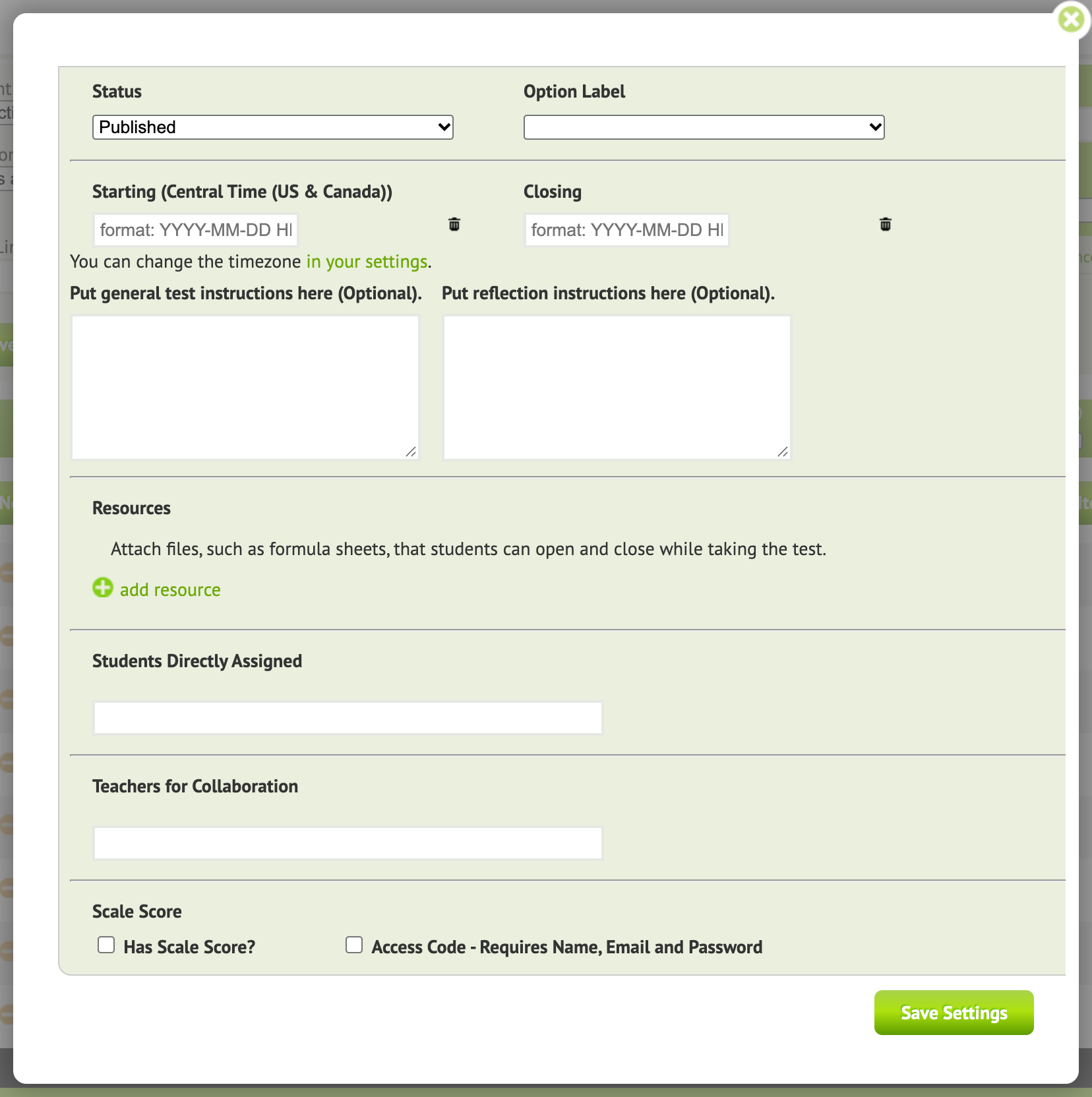
- Starting and Closing date and time. See Assign a Test.
- Option Label: letter (A, B, C, D) or number (1, 2, 3, 4) labels on answer choices.
- Instructions that students see before they start, and Reflection instructions for after.
- Resources: files such as a formula sheet that students can open during the test.
- Students Directly Assigned: give the test to individual students. See Assign a Test.
- Teachers for Collaboration: let colleagues edit this test and its items. See Teams.
- Scale Score: report a scale score instead of only raw points, from your own raw-to-scale table.
- Access code + name: students enter the access code, then their name, email and a password, instead of picking their name from a list.
Click Save Settings, then Save Assessment.