
Teams
On this page
Teams let a group of teachers, such as a grade-level team, department or PLC, share tests and compare results. Each team has one page with everything it has shared.
Teams come with Teacher Pro and with school and district accounts. Free teachers see Teams with a link to Teacher Pro.
Create a team
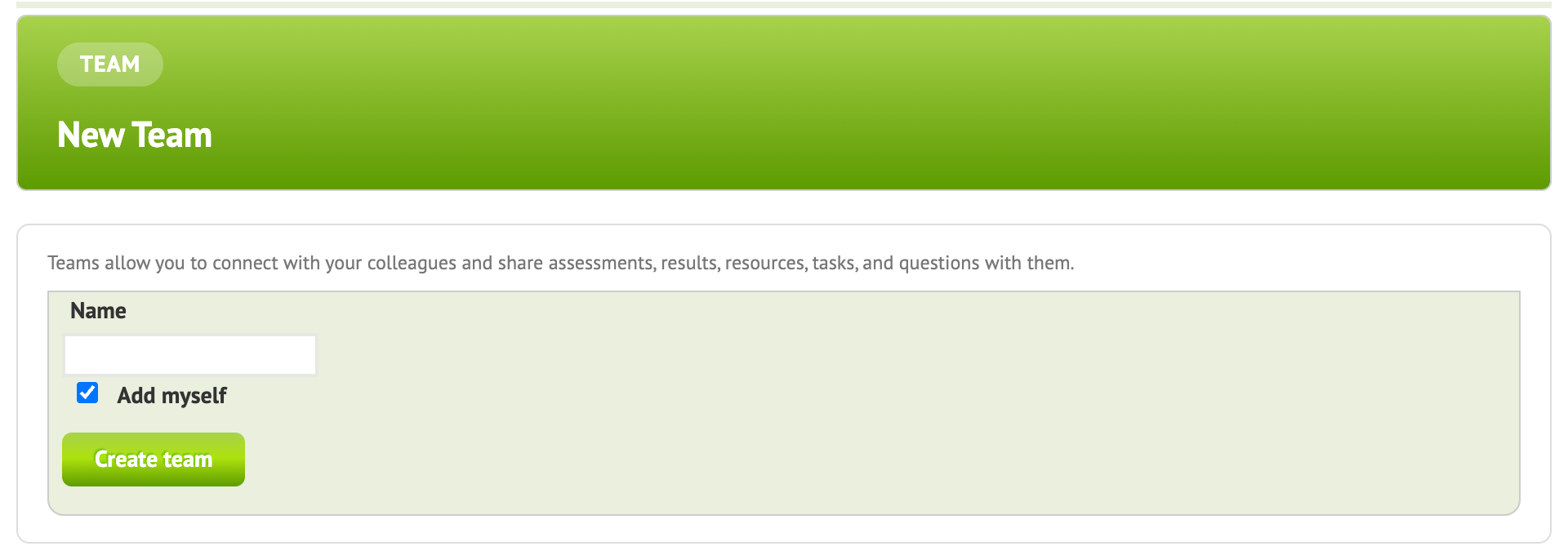
- Click Teams in the top menu, then New Team.
- Name the team and choose whether you’re a member yourself.
- Add teachers: type at least three letters of a name and pick the teacher from the list.
- Click Create Team.
The team page
- Shared Assessments, Shared Resources, Tasks, Team Questions and Folders: jump to any of them from the top.
- Live counts you can click to see the full list behind each one.
- Shared tests, each with Team Results: a standard-by-standard breakdown across every class that took it.
- Add or remove teammates right from the page.
Share a test with your team
Open the test and use the Add to Team menu at the top right to pick the team. Once students have taken it and the teacher has closed and scored it, its results appear for the team. Share learning resources the same way.
Team Results
When teammates give the same test, Team Results puts all their classes side by side, so the team can see which standards every class struggled with and which classes did especially well on what.
- Each teacher gives the test to their classes. Using the same test, ideally locked with Prevent Edit, keeps the results comparable.
- Add the test to your team. Results appear for the team once the test has been closed and scored.
- On the team page, find the test under Shared Assessments and click Team Results.
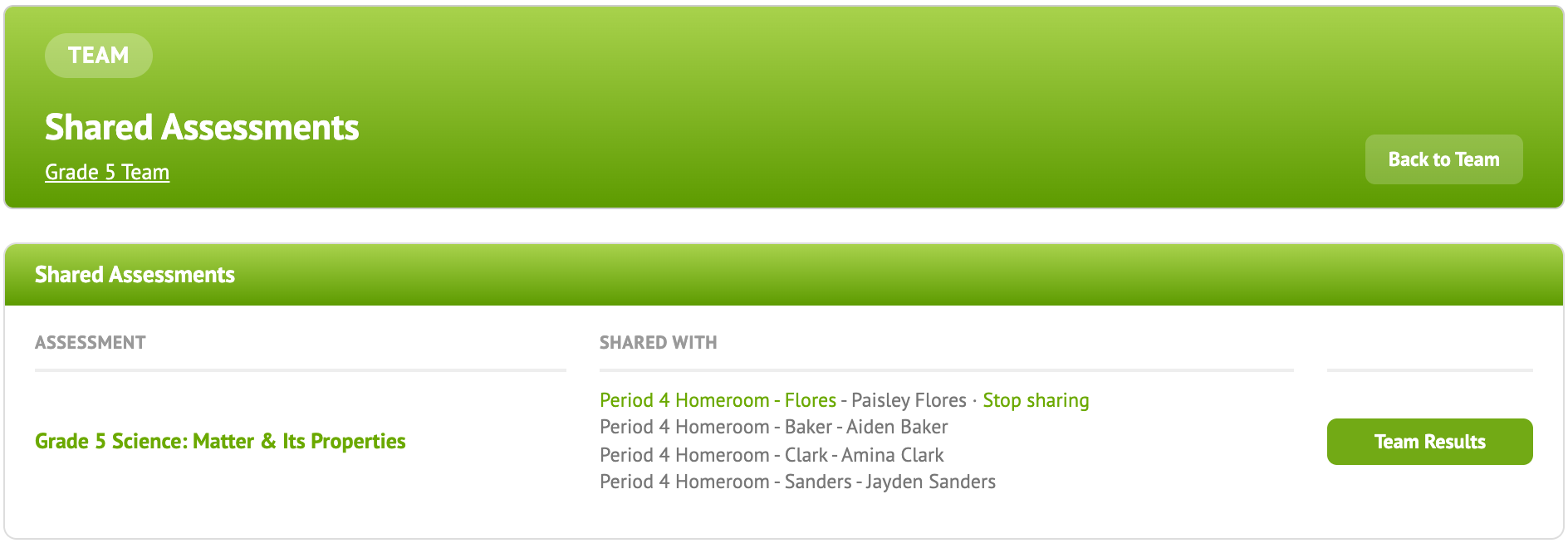
Team Results breaks the results down standard by standard, for every class that shared the test.
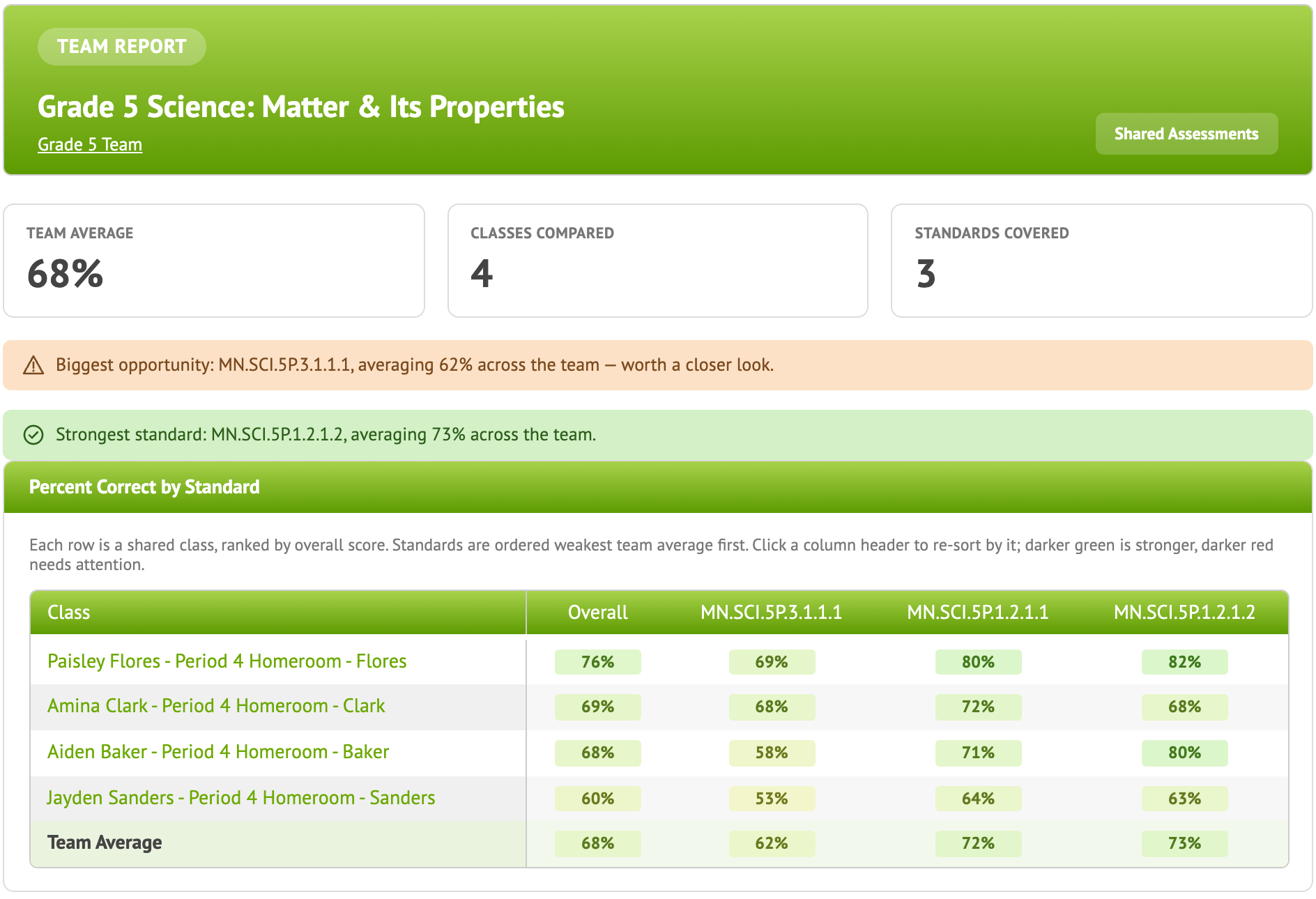
Bring it to your next PLC meeting: pick the one or two standards with the lowest results across classes, talk about what worked in the classes that did best, and plan reteaching.
Let a colleague edit your test
When you create a test, only you can edit it and its items. To let a colleague edit them too, add them as a collaborator:
- Open the test and choose Actions ▼ → Edit, then Advanced Settings.
- Under Teachers for Collaboration, type the teacher’s name and pick them from the list.
- Click Save Settings, then Save Assessment.