
Students Who Sign In with an Access Code
An access code is the quickest way to get students into Naiku when they don’t have accounts yet, and a simple way for younger students to sign in every time.
Set up
- Create your classes: Classes → + New Class. Only a name is required.
- Create a test and assign it to the classes.
- Open the test’s Watch Progress for a class. The access code is at the top. Click Show large to project it. Each class’s copy of the test has its own code.
What students do
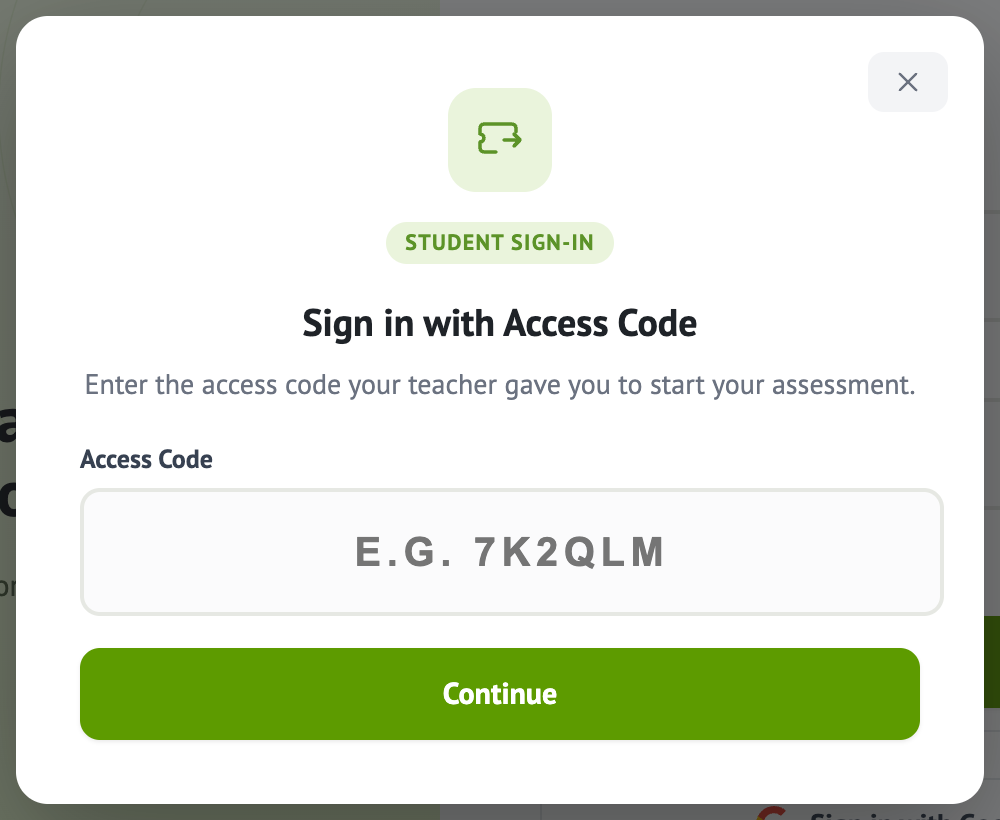
- Go to a.naiku.net and choose Sign in with Access Code.
- Enter the code and click Continue. Naiku shows Code Accepted.
- Select your name from the list and click Start Assessment.
- Not in the list yet? At schools that create their own classes in Naiku, students click Create an account and enter first name, last name, email (optional) and a password. Remind students not to type spaces before or after their names.
Students who create an account this way join your class and your school, and can sign in next time with their username and password.
Hiding the name list
The name list shows every student in the class. If you’d rather students not see classmates’ names, for example at a district-wide event, turn on Access Code - Requires Name, Email and Password in the test’s Advanced Settings. Students then enter the code and type their name, email and password instead of choosing from a list.
If a student has trouble
- Their name isn’t in the list: at a school with rostered classes, students see “Ask your teacher.” Check your roster, or add them to the class.
- They created a second account by mistake: don’t delete anything. Email support@naiku.net with the student’s name and school.
- The code doesn’t work: each class’s copy has its own code. Check that you gave them the code from their class’s Watch Progress.
Forgotten passwords
You can reset a student’s password yourself. See Changing a Student’s Password.