
Learning Resources
A learning resource is a follow-up activity, such as a worksheet, a web page, a video or another test, linked to a standard. After a test, Naiku recommends resources to each student based on how they did on that standard: intervention if they struggled, practice if they’re getting there, enrichment if they’ve got it.
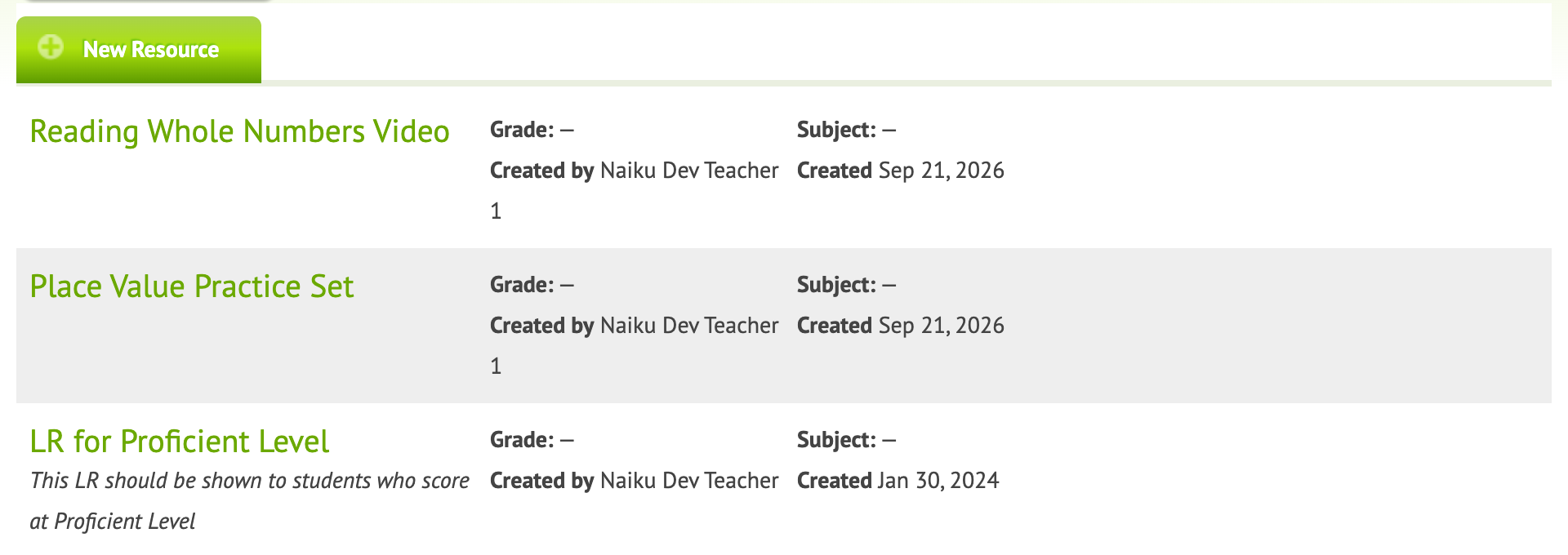
Create a learning resource
Learning resources live on curriculum maps.
- Open a curriculum map and click a standard.
- Click add resource.
- Enter a name and a short description. The description can include links to websites or videos.
- Optional: tags, grade, subject and an attached file.
- Choose the level:
- Intervention (below 65% on the standard)
- Practice
- Enrichment (above 95%)
- Save.
Use them on a test
- Edit the test and tick Learning Resources under Options.
- Naiku lists the resources linked to the standards your test’s items are aligned to.
- Save the test.
After the test, each student sees links to the resources for their own level on each standard. They click a resource to open it.
Use another test as a resource
You can send students to a follow-up test, for example a short re-check after an intervention video.
- Create the follow-up test and assign it to the class.
- Open it, choose Actions ▼ → Preview, and copy the address from the browser’s address bar.
- In that address, change
/teacher/to/student/. - Create the learning resource as above, and add the edited address as a link in its description.
Students who get that resource can open the follow-up test straight from their results.