
Assigning Standards to Test Items
When your questions are aligned to standards, Naiku can show how students did on each standard in Class Results, the Class Dashboard and other reports.
Align an item
- Open the item, or create one from your test.
- Under Settings on the left, click Edit.
- In the standards box, type a code or a few words, e.g. 6.G.A.1 or right triangles, and pick the standard. Or browse to it in the window that opens.
- Close the settings window and save the item.
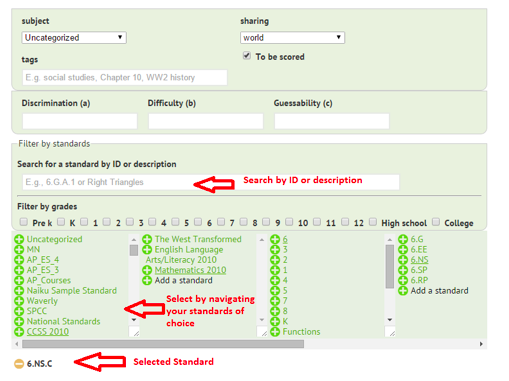
You can add more than one standard to an item. To remove one, click the red minus sign next to it.
Tips
- Quick Key tests: select the questions that share a standard and click Add standards to selected items.
- Too many old standards in your search? In your profile, tick them under Standards to Ignore.
- Standards you add after a test is scored may not appear until you Re-score it.