
Curriculum Maps
A curriculum map shows the big picture of a course: the standards (or learning targets) you’ll teach, the tests that assess them and the learning resources that go with them.
Create a map
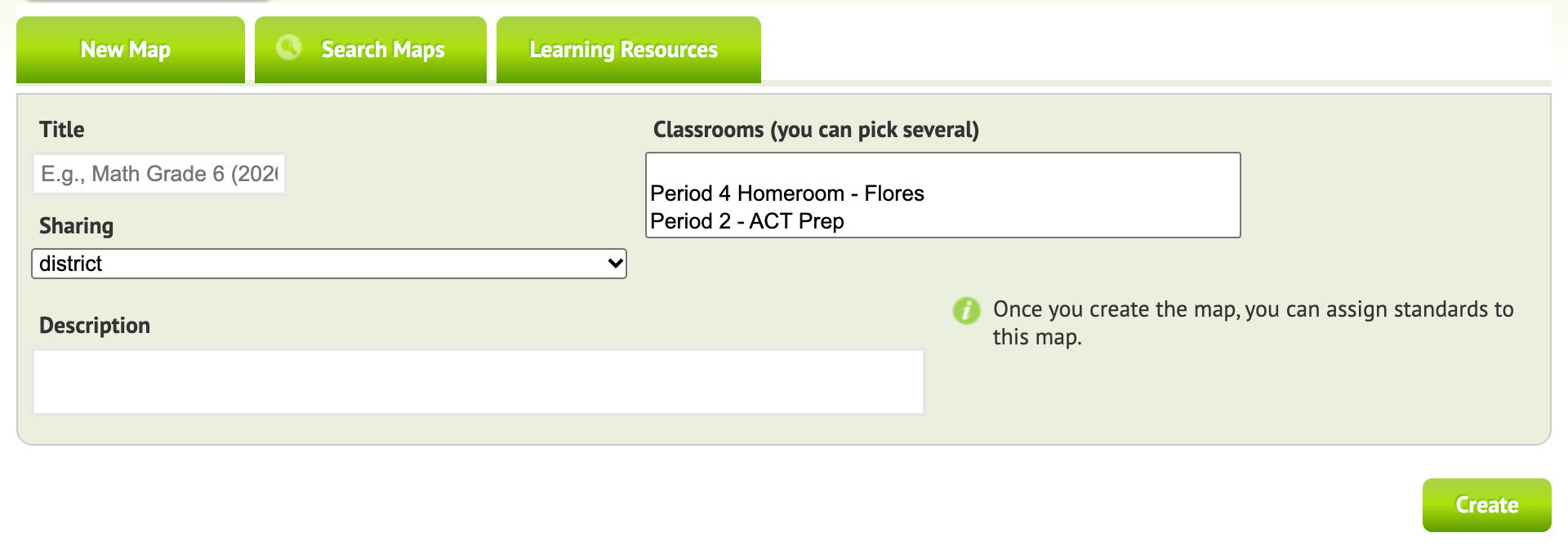
- Open the curriculum maps page and click New Map. Or, from a class, choose Create ▼ → Curriculum Map. A short tour walks you through the steps.
- Enter a name, e.g. Math Grade 6 (2026-27), and set the Sharing level: Just Me, School, District or World.
- Optional: pick the classes to assign it to. You can do this later.
- Click Create.
Before you start from scratch, try Search Maps. A colleague may have already made one you can use.
Add standards
Start from your state standards or the Common Core for the grade and subject:
- Click Add standard, browse to the standards and click + to add them.
- To add your own learning target, click a standard on the map and add a new one under it. Enter a short number (e.g.
8.G.B.7.1) and a short description.
Add learning resources
Click a standard to attach a learning resource, such as a worksheet, a web page, a video or another Naiku test. Choose who gets it, based on how the student did on that standard:
- Intervention (below 65%)
- Practice
- Enrichment (above 95%)
After a test, each student sees the resources that match their own results. See Learning Resources.
Assessments on the map
As you assign tests whose items are aligned to the map’s standards, they appear on the right side of the map. Click a test to highlight the standards it covers, so you can see which standards are tested and which aren’t yet.