
Quick Key
On this page
Quick Key lets you use a test you already have, on paper or as a Word or PDF file, without retyping the questions. You enter only the answer key. Students see your test file next to an answer sheet, and Naiku scores their answers and builds the same reports as any other test.
Create a Quick Key test
- Click Assessments, hover over Create ▼ and choose Quick Key.
- Enter the Assessment Name and, if you like, the Subject, Grade, Sharing and Tags.
- Enter the number of questions on your test and click add. The questions start as multiple choice. Choose how the choices are labeled: A, B, C, D; alternating A–D / F–J; or 1, 2, 3, 4.
- For each question:
- Change the Item Type if needed: Multiple Choice, Multiple Response, Yes/No, True/False or Constructed Response.
- Click the letter of the correct answer. For Constructed Response, type the correct answer.
- Optional: align questions to standards. Select the questions that share a standard and click Add standards to selected items. Repeat for each standard.
- Click Add Test File and choose your PDF or Word file, so students can see the questions while they answer. See Show your test file to students.
- Click Save Assessment.
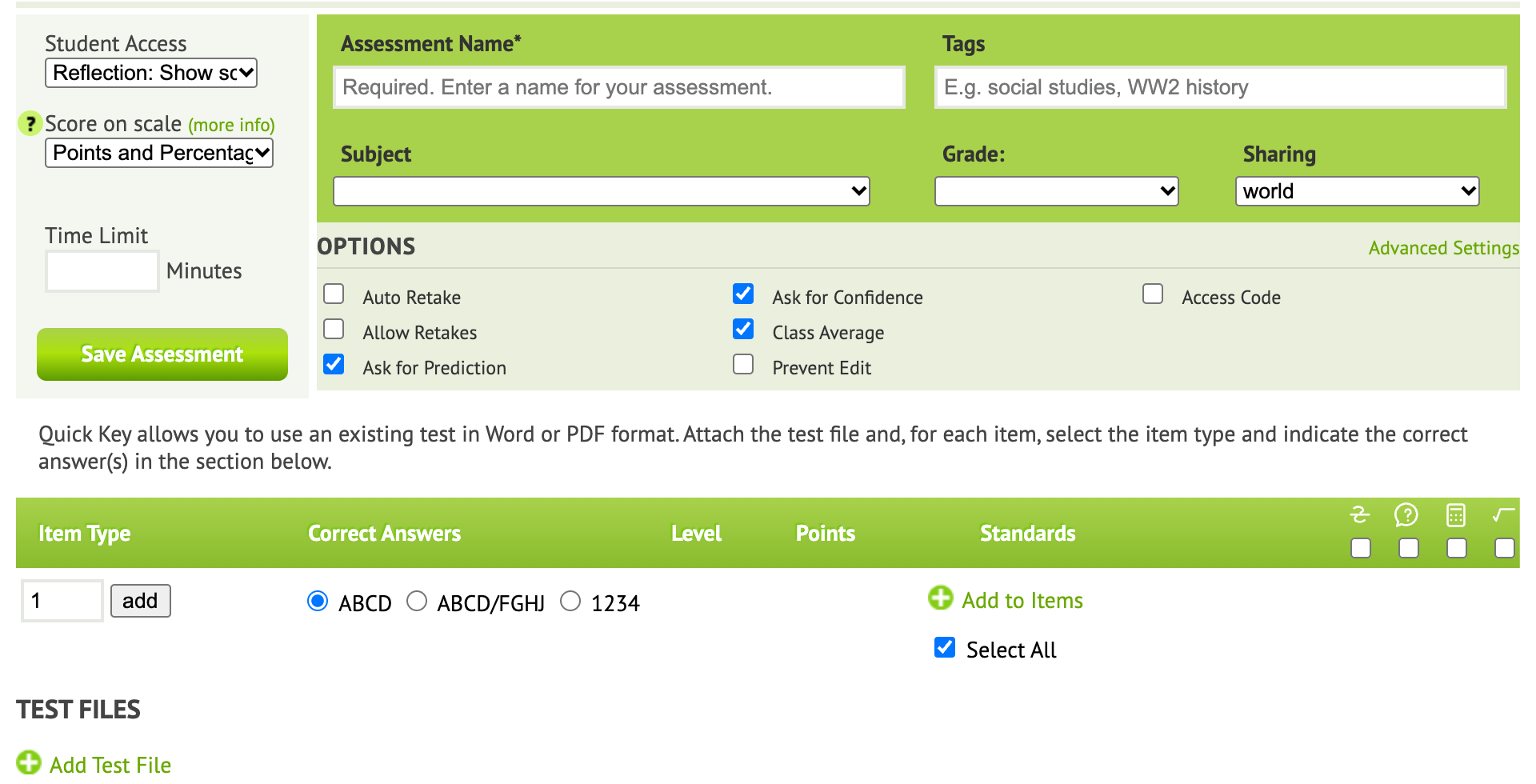
Then assign the test to your classes like any other test.
Show your test file to students
Keep Display to Students ticked on your test file. On a computer, Chromebook or tablet, the test appears on the left and the answers on the right. Students scroll through the file, and can still flag questions and rate their confidence.
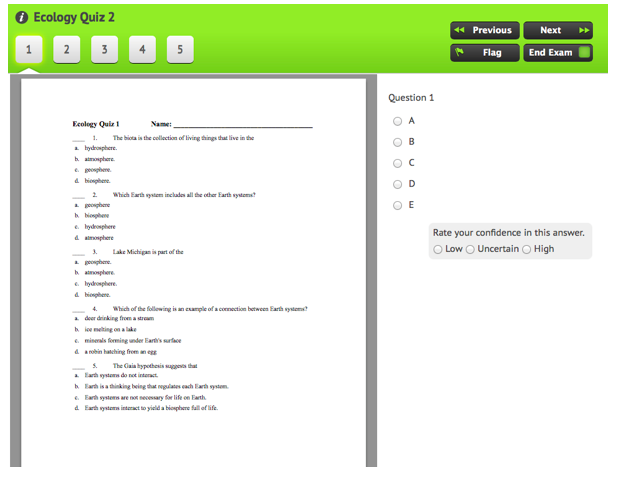
Students can download a displayed file. Browsers allow this. To prevent it, untick Display to Students and hand out paper copies instead.
Paper tests and phones
Good to know
- Quick Key tests can’t be copied with Save As, because they have no item content of their own.
- Reports by standard work only when you add standards in step 5.