
Creating Short-Answer Items
On this page
A short-answer item is a Constructed Response item with an answer Naiku can check. Students type a word, a number or a short phrase, and Naiku scores it automatically by comparing it with the answer you enter (a matcher).
For longer written answers that you score yourself, see Creating and Scoring a Constructed Response Item.
Create the item
- Open your test for editing and click New Item ▼ → Constructed Response.
- Type the question in the Stem.
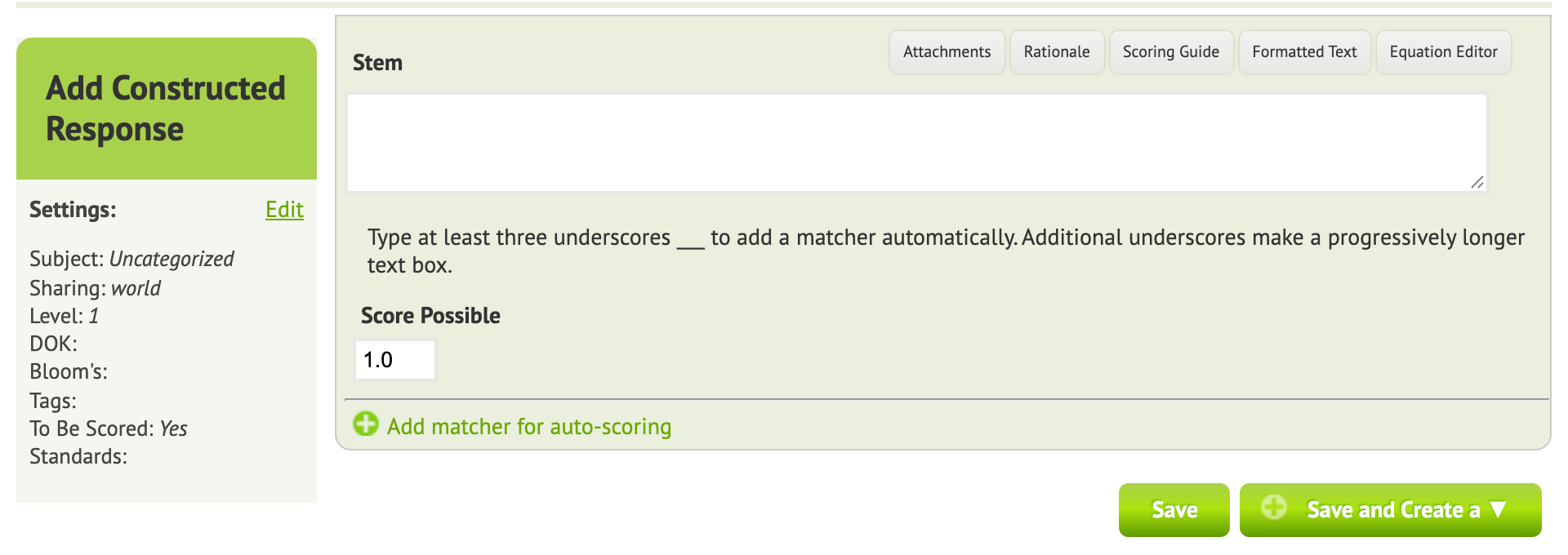
- Where the answer goes, type three or more underscores:
___. Naiku adds a matcher for each blank, and students type their answer right in the sentence. More underscores make a longer box.
Example: The capital of Minnesota is ______.
Set the answer
For each matcher, choose a Type and enter the correct answer:
| Type | Use it for | Example |
|---|---|---|
| Text answer | Words and phrases | Saint Paul |
| Number answer | An exact number | 42 |
| Range answer | Any number in a range | 0..1 (letters work too, e.g. e..m) |
| Precision answer | A number to a set number of significant digits | 3.14159 with 3 digits |
| Fraction answer | A fraction | 3/4 |
For text answers you can also:
- Add Alternative to accept other correct answers, for example
St. Paul. - Tick Allow Misspelling to accept close misspellings.
- Tick Case Sensitive if capital letters matter.
To have a student give several answers in one box group, set Number of answers the student must provide.
Without underscores, you can still click Add matcher for auto-scoring to score the student’s answer box.
Save
Click Save and Add to Test. Use Preview on the test to try a few answers and check that the matcher accepts what you expect.