
Creating and Scoring a Constructed Response Item
In a constructed response item, students type their own answer. Naiku can score short answers automatically, or you can score the answers yourself.
Create the item
- Open your test for editing and click New Item ▼ → Constructed Response.
- Type the question in the Stem.
- Set Score Possible, the points the question is worth.
- Choose how it will be scored, below.
- Click Save and Add to Test.
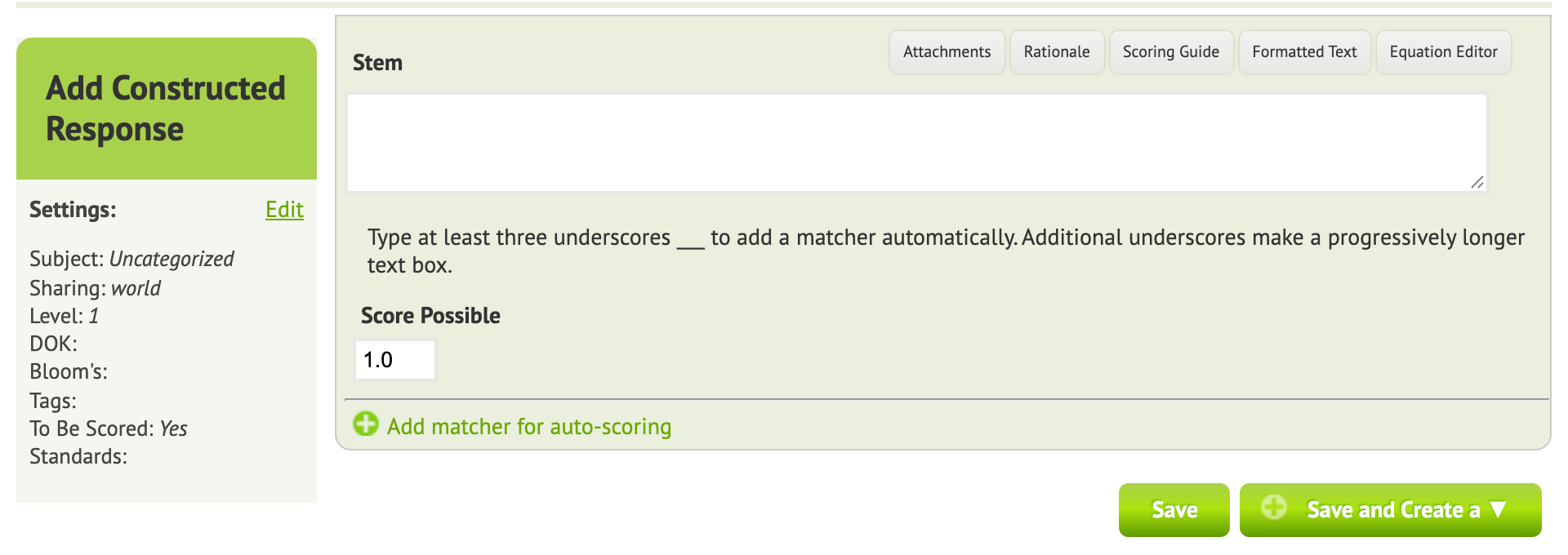
Option 1: You score it
Don’t add a matcher. Optionally click Scoring Guide and enter your rubric, for example what a 4, 3, 2 and 1 look like. It’s there for you while you score.
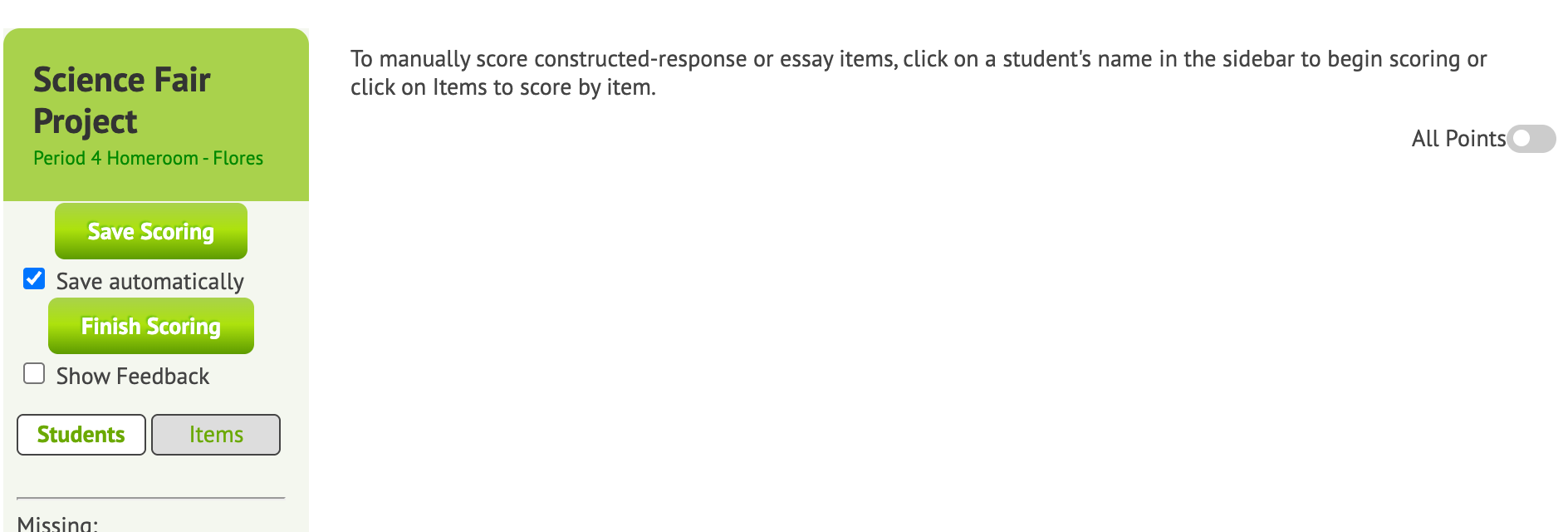
After students finish, click Close & Score. Click a student’s name to score their answers, or click Items to score one question across the whole class. Click Finish Scoring when you’re done.
Option 2: Naiku scores it
Click Add matcher for auto-scoring and choose a Type. This works best for a word, short phrase or number.
| Type | Use it for | Example |
|---|---|---|
| Text | Words and short phrases | Washington |
| Number | One exact number | 25 |
| Range | Any number in a range | 3000..4000 |
| Fraction | A fraction | 1/2 |
| Precision | A number to a set number of significant digits | 3.14 |
For a text answer:
- Add Alternative accepts other correct answers, such as
George Washington. - Allow Misspelling accepts close misspellings.
- Case Sensitive requires matching capital letters. Leave it off for most questions.
- Number of answers the student must provide is for a question that asks for more than one answer.
A student wrote a correct answer that the matcher missed? You can accept it from Item Analysis after scoring.
For blanks inside a sentence, see Short-Answer Items. For a rubric with several traits, use an Essay item.