
Passages with Sub-items
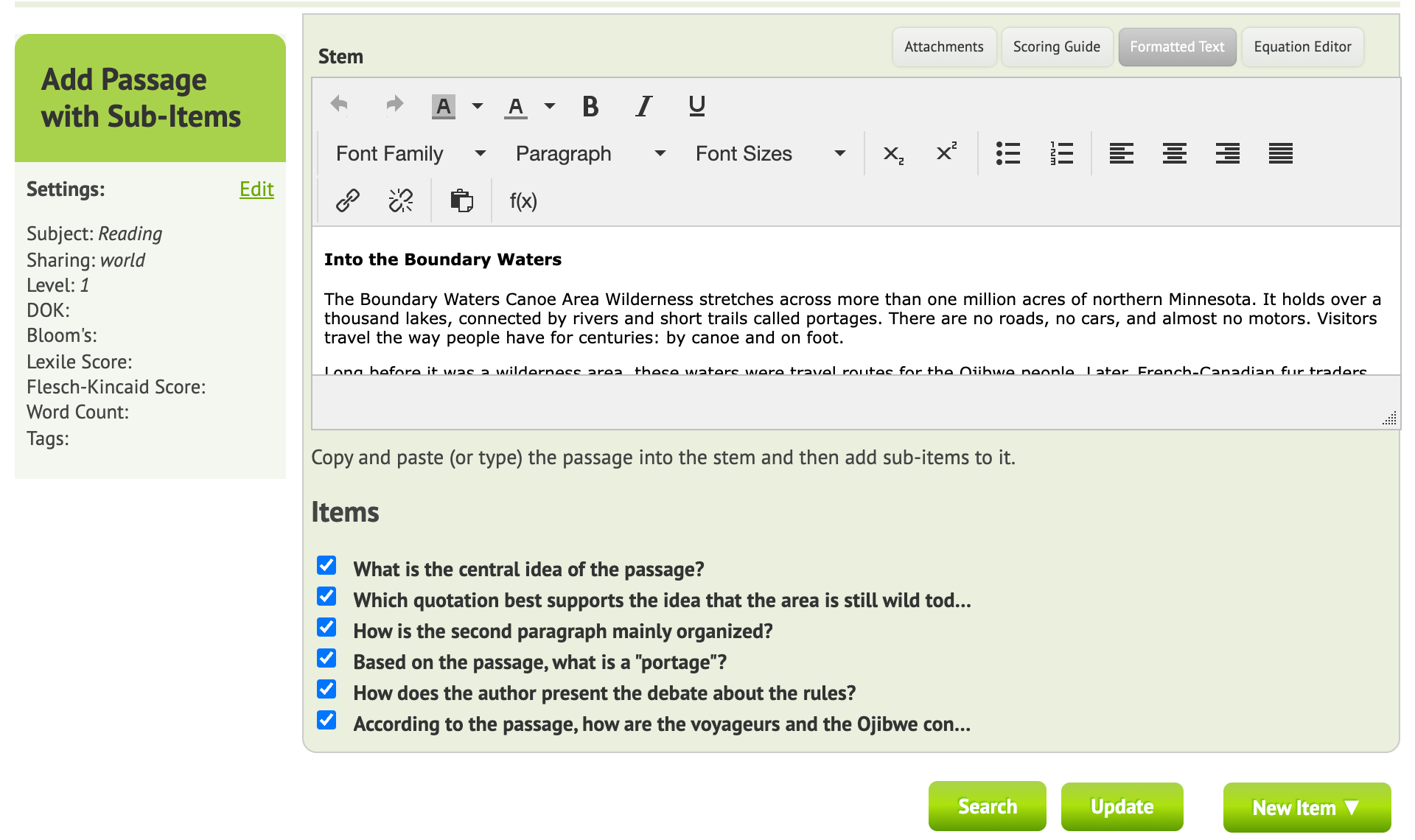
A Passage with Sub-items shows a reading passage, or any shared text, image or data set, next to the questions about it. Students scroll the passage on one side and answer the questions (the sub-items) on the other.
Write your own passage
- Open your test for editing and click New Item ▼ → Passage with Sub-items.
- Paste or type the passage into the Stem. Add images with Attachments.
- Add the questions:
- New questions: hover over Save and Create a ▼ and pick the item type, for example Multiple Choice. Naiku saves the passage and opens the new sub-item. Write it, then use Save and Create a ▼ again for the next one.
- Existing questions: click Search Items, find the items and add them to the passage.
- When the passage has all its sub-items, click Save and Add to Test.
Use a passage from an item bank
If your school subscribes to an item bank with passages, you can build a reading test in a few minutes.
- Start a new assessment and click Search Items.
- Set Type to Passage with Sub-items and pick the Item Bank.
- To match a grade level, open More Filters and set a Flesch-Kincaid score (e.g. 5 for grade 5) or a Lexile score. Search.
- Click a passage’s title to read it in a new browser tab.
- Back in the search, click (Select Subitems) under the passage you want. Add all of its questions, or tick only the ones you need, for example two per standard.
- Close the window and click Save Assessment.
Students see the passage and its questions side by side. Reports show each sub-item as its own question, aligned to its own standards.