
Searching for Items
On this page
You don’t have to write every question yourself. While you build a test, you can search all the items you’re allowed to use: your own, items other teachers share with your school or district, and any item bank your school subscribes to.
Open the search
- Open your test for editing (or start a new assessment).
- Click Search Items, on the right above the item table.
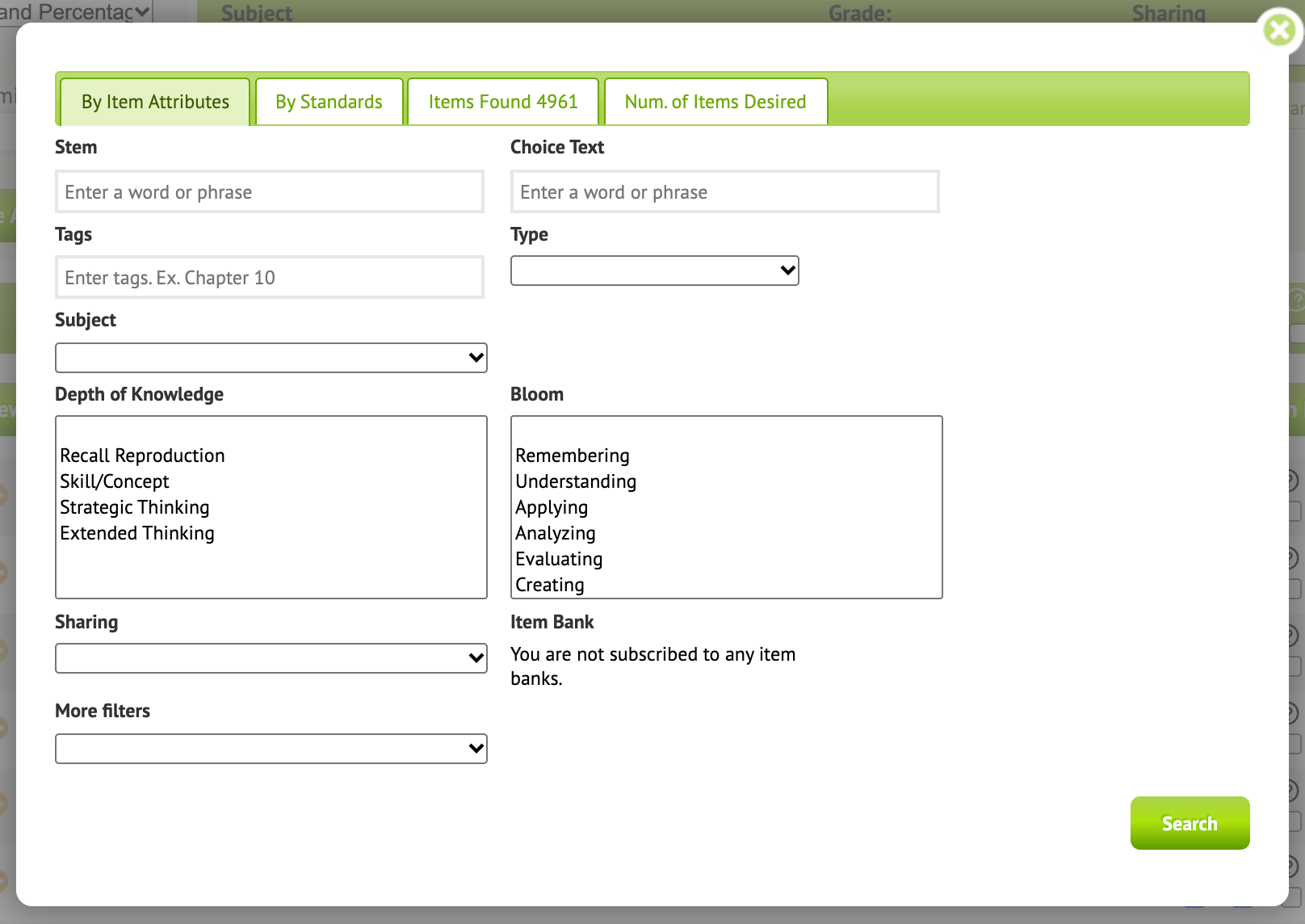
The search window has four tabs.
By Item Attributes
Narrow the search with any of these:
- Stem: words in the question. Choice text: words in the answer choices.
- Type (and Sub type), Subject, Grade, Tags.
- Depth of Knowledge and Bloom level.
- Sharing: whose items to search.
- Item Bank: the item banks your school subscribes to. If it says “You are not subscribed to any item bank”, your school has none.
- More Filters: readability (Lexile, Flesch-Kincaid), word count and language, plus Only my own items and With attachments.
By Standards
Pick one or more standards to find items aligned to them.
Items Found
The results, with a count. Click an item to see it in full. Tick the box next to each item you want, and it’s added to your test.
Num. of Items Desired
Let Naiku pick for you: enter how many items you want, and Naiku suggests that many at random from your results. See Auto Build.
After you add items
- The items appear in your test’s item table. Drag to reorder them.
- To change an item you added, open it and edit it. The edited version replaces the item in your test.
- Click Save Assessment when you’re done.