
Images, Audio and Video
You can add pictures, sound and online videos to any item type. After adding one, check it with Preview on a student device.
Images
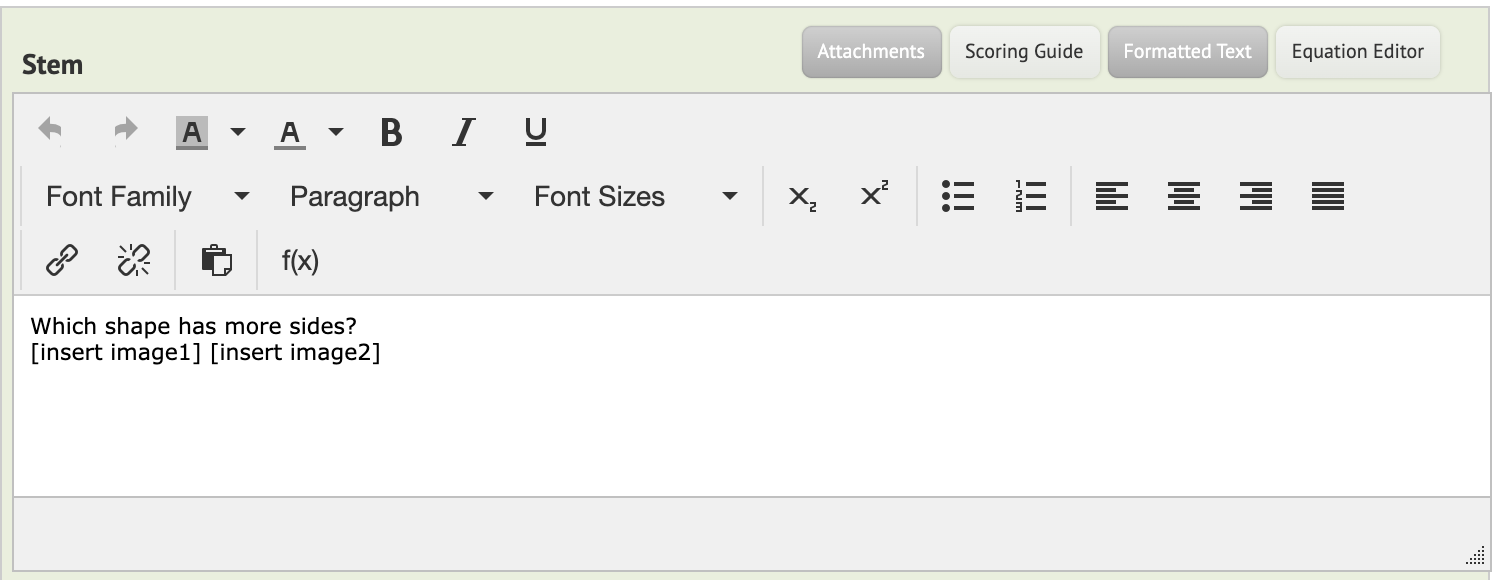
When you attach images to an item, Naiku shows them below the question by default. To put an image somewhere else in the stem, type a placeholder where it should go.
- Attach the images with Attachments. Naiku numbers them in the order you add them.
- In the Stem, type
[insert image1]where the first image should appear,[insert image2]for the second, and so on. - Save the item.
Example:
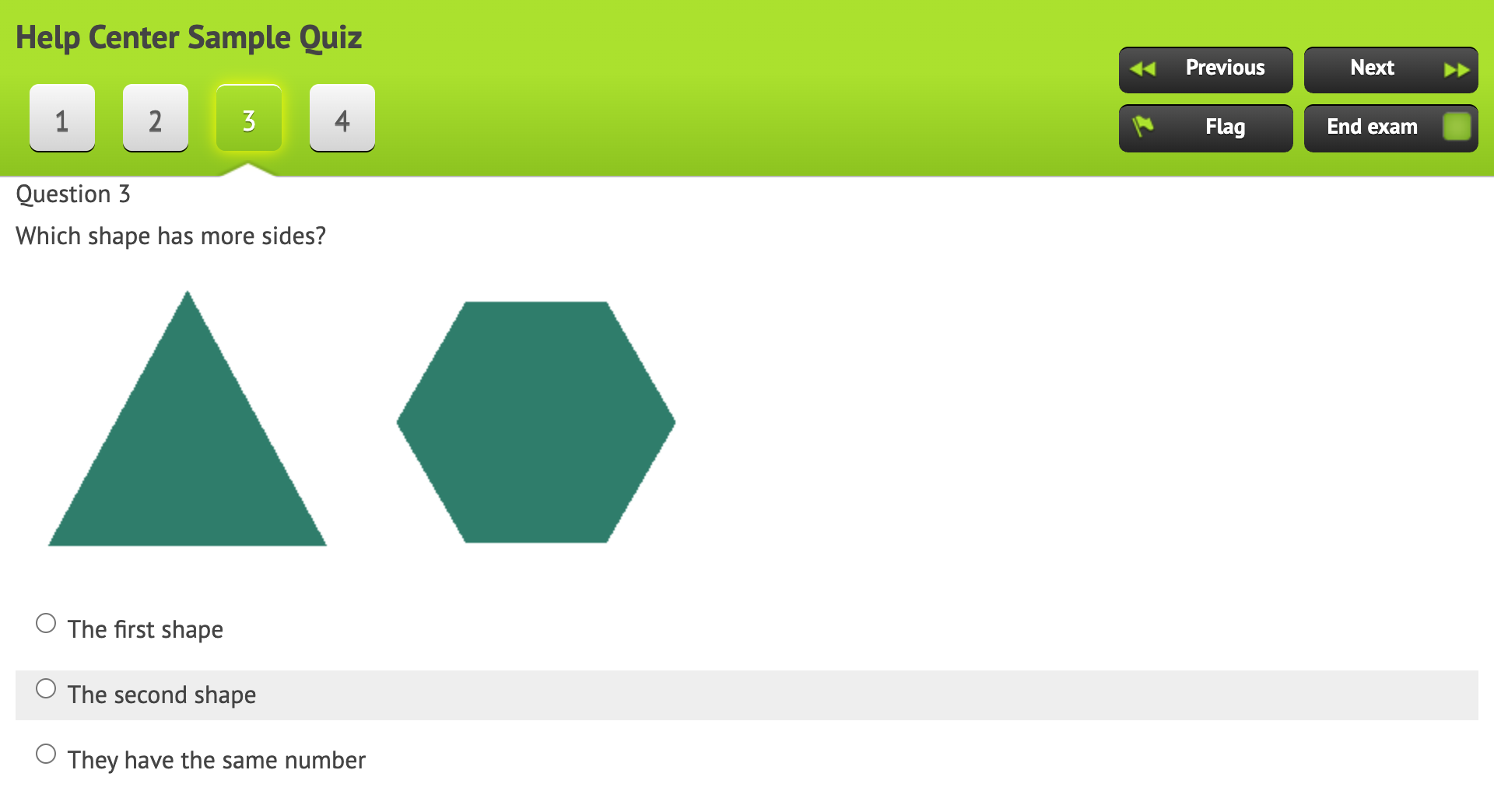
Which shape has more sides? [insert image1] [insert image2]
Students see the images in those spots:
To change the order, swap the placeholders. You can put a placeholder on its own line or in the middle of a sentence. If the text wraps oddly around an image, adjust the spacing in the editor.
Audio
Attach an audio file for a listening passage, a word to spell or a read-aloud of the question.
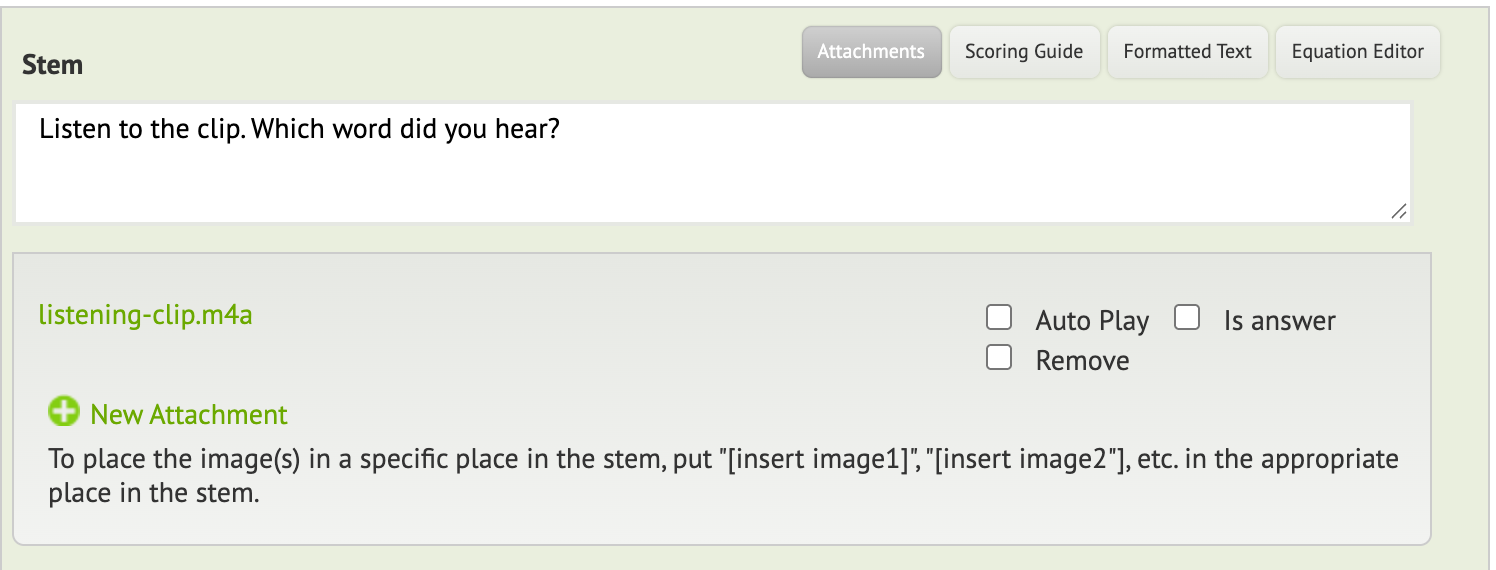
- While editing the item, click Attachments, then New Attachment.
- Set the attachment type to Audio / Other.
- Choose the audio file from your computer. MP3 works best in every browser.
- Save the item.
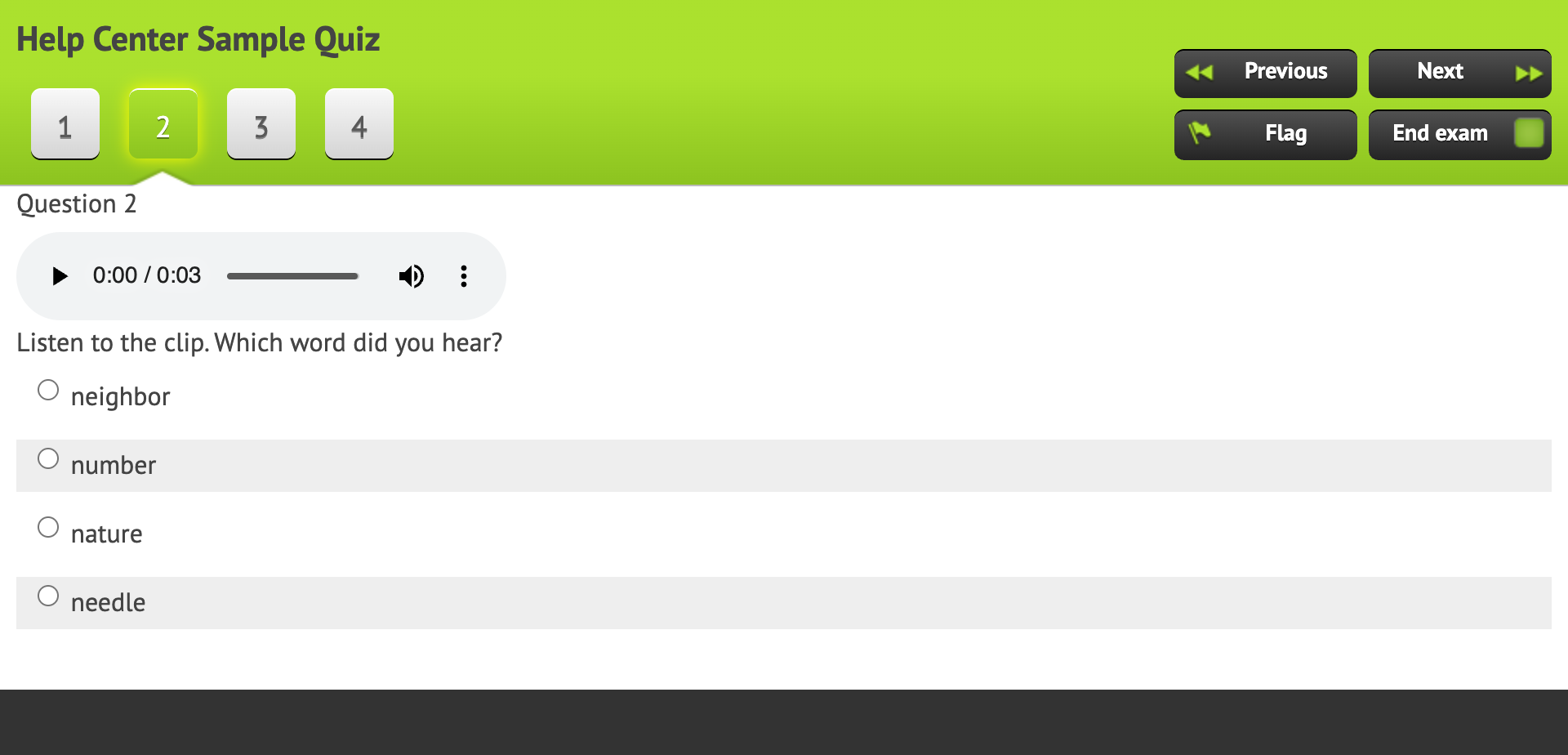
Students see a player in the question and can play the clip as many times as they like.
Keep clips short, because students on slow connections wait for the whole file. Students need headphones or speakers.
Video
You can put a video right in a question, so students watch it without leaving the test.
- Go to the video, for example on YouTube.
- Click Share, then Embed, and copy the code. It starts with
<iframe. - In Naiku, open the item and paste the code into the Stem, where the video should appear. Use the plain Stem box, not Formatted Text.
- Add your question and answers, and save the item.
The code looks messy in the Stem box. Students see a video player instead.
If the video doesn’t play:
- Your school’s filter may block the site. Check on a student device, and ask your tech team to allow it.
- Some videos can’t be embedded. The owner controls this. Choose another video.