
Ordered and Sorting Items
These items have students drag answers. Both start from the Ordered item type.
Ordered items
Students drag a scrambled list into the correct order, such as the steps of a process or events on a timeline.
- Open your test for editing and click New Item ▼ → Ordered.
- Type the directions in the Stem, e.g. Put these events in order, earliest first.
- Type each answer in an Option box, in the correct order. Click + Option for more.
- Leave Enforce Order selected.
- Click Save and Add to Test.
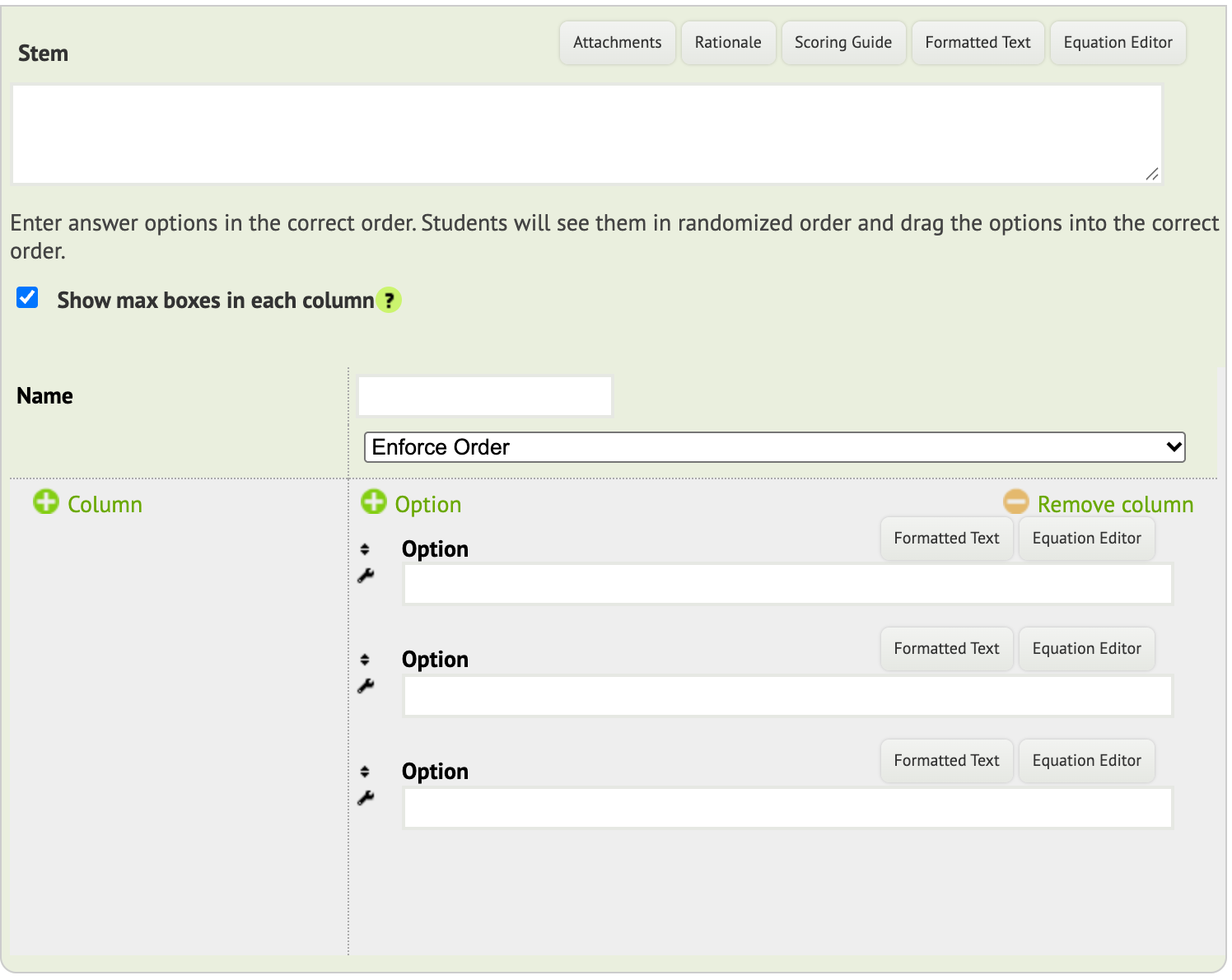
Naiku scrambles the options for each student. To move an option while building the item, drag it by the up-and-down arrow icon. Formatted Text and Equation Editor add formatting and math.
Sorting items
Students drag answers into groups, such as Allied and Axis countries or Prime and Composite numbers.
- Open your test for editing and click New Item ▼ → Ordered.
- Type the directions in the Stem, e.g. Sort these countries by their side in World War II.
- Click + Column until you have one column per group.
- Type a heading in each column’s Name box.
- Under each column, change Enforce Order to Don’t Enforce Order, unless the order within the group matters.
- Add each answer as an Option under the column it belongs to. Click + Option for more.
- Click Save and Add to Test.
Naiku mixes up the answers for each student, and students drag them into the columns.
Use Preview to try it before you give it.