
Inline Multiple Choice Items
In an inline multiple choice item, the choices appear as a drop-down inside the question’s sentence, instead of as a list below it. It works well for grammar, vocabulary and cloze-style questions.
Create one
- Click New Item ▼ → Multiple Choice.
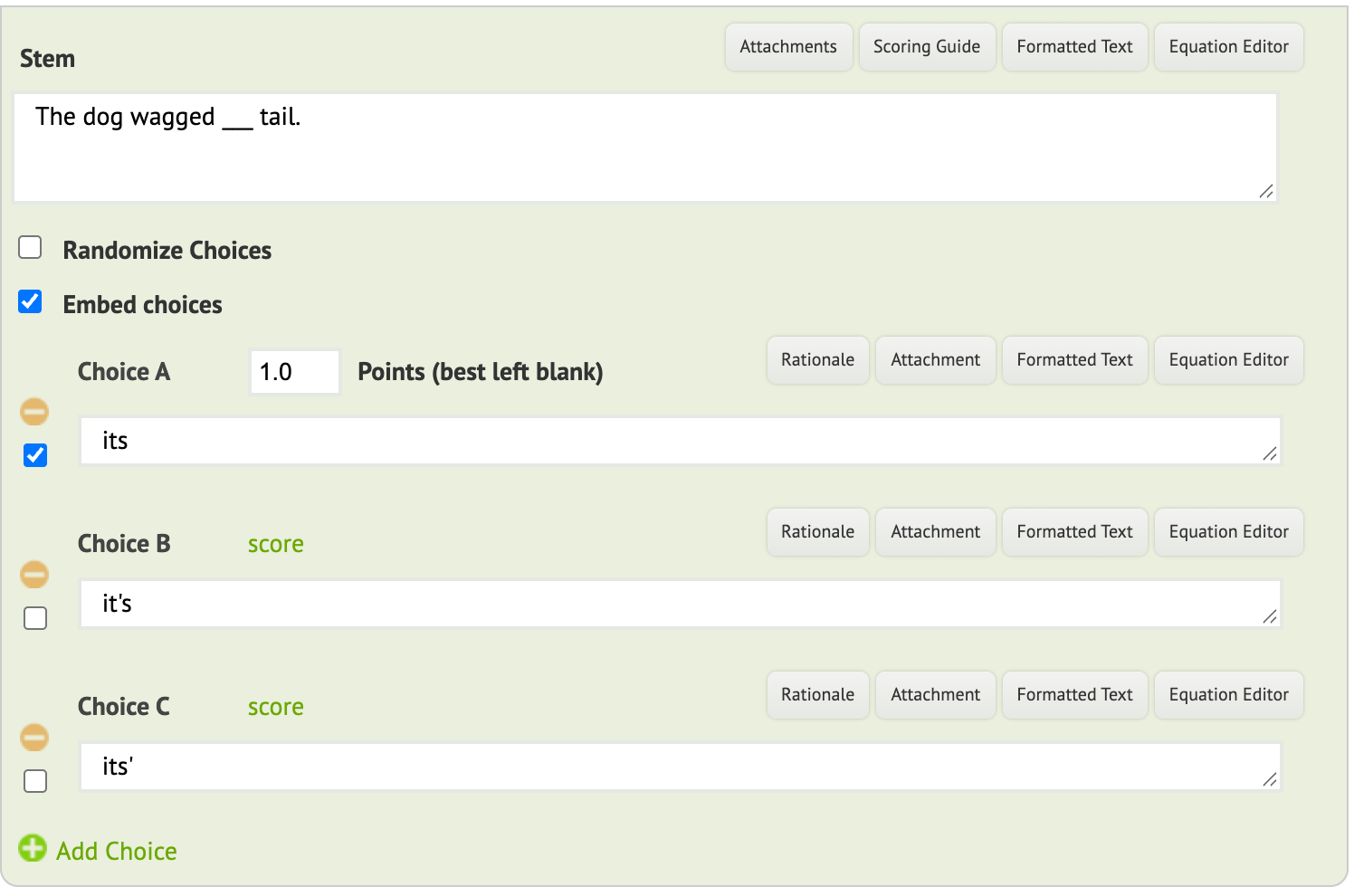
- Type the question in the Stem, with three underscores
___where the drop-down should go. Example: The dog wagged___tail. - Once the stem has a
___, an Embed choices box appears. Leave it ticked. - Add the choices (its, it’s, its’) and tick the correct one.
- Click Save and Add to Test.
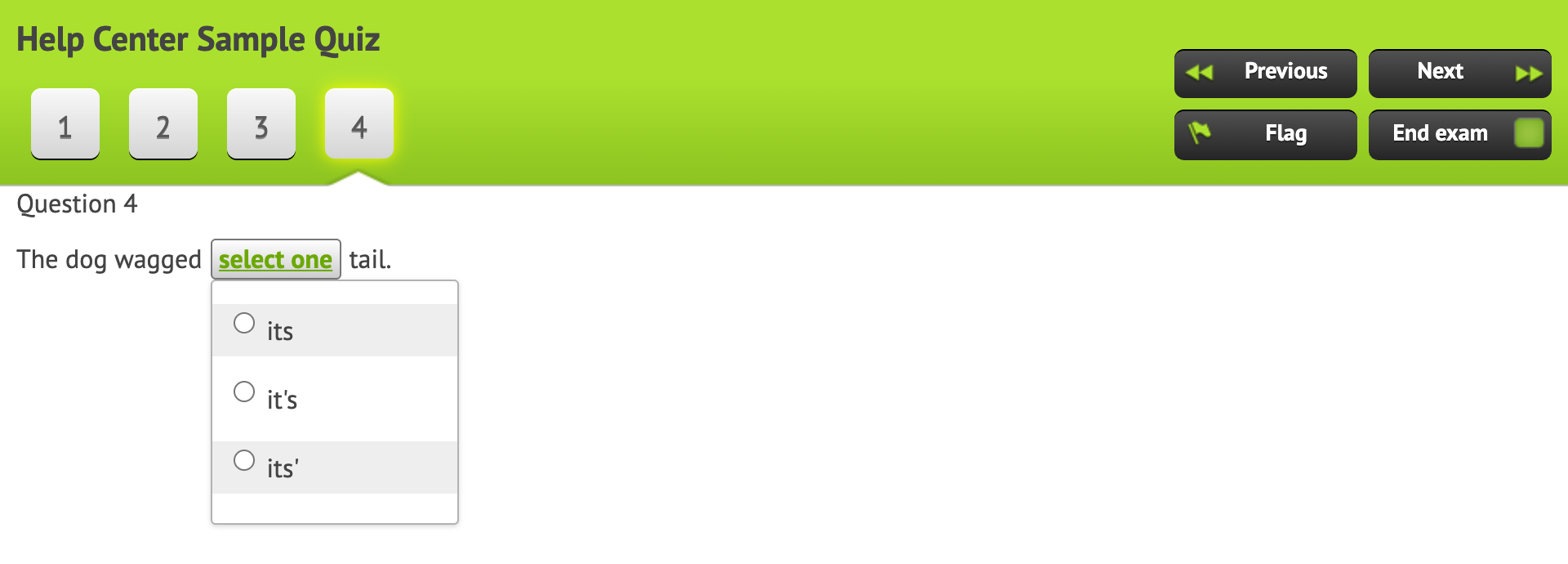
Students see a select one button in the sentence. They click it and pick an answer from the list. Choices can be text or images.
Good to know
- One drop-down per item. For several blanks in one sentence, use a short-answer item (students type each answer) or several items.
- Scoring, reports and reflection work the same as for any multiple choice item.