
Multiple Choice and Multiple Response Items
On this page
Multiple choice is the most common item type in Naiku. True / False and Multiple Response items work the same way.
Create the item
- Open your test for editing, or start a new assessment.
- Click New Item ▼ and choose Multiple Choice.
- Type the question in the Stem. Use the editor’s toolbar for formatting, tables and links. Equation Editor adds math (see Math Equation Editor), and Attachments adds images, audio or other files.
Add the answer choices
- Type each answer in its own Choice box. Click Add Choice for more.
- Tick the box next to the correct answer.
- Optional: add a Rationale to a choice. Students see it in their reflection after the test.
- Optional: tick Randomize Choices to shuffle the choices for each student.
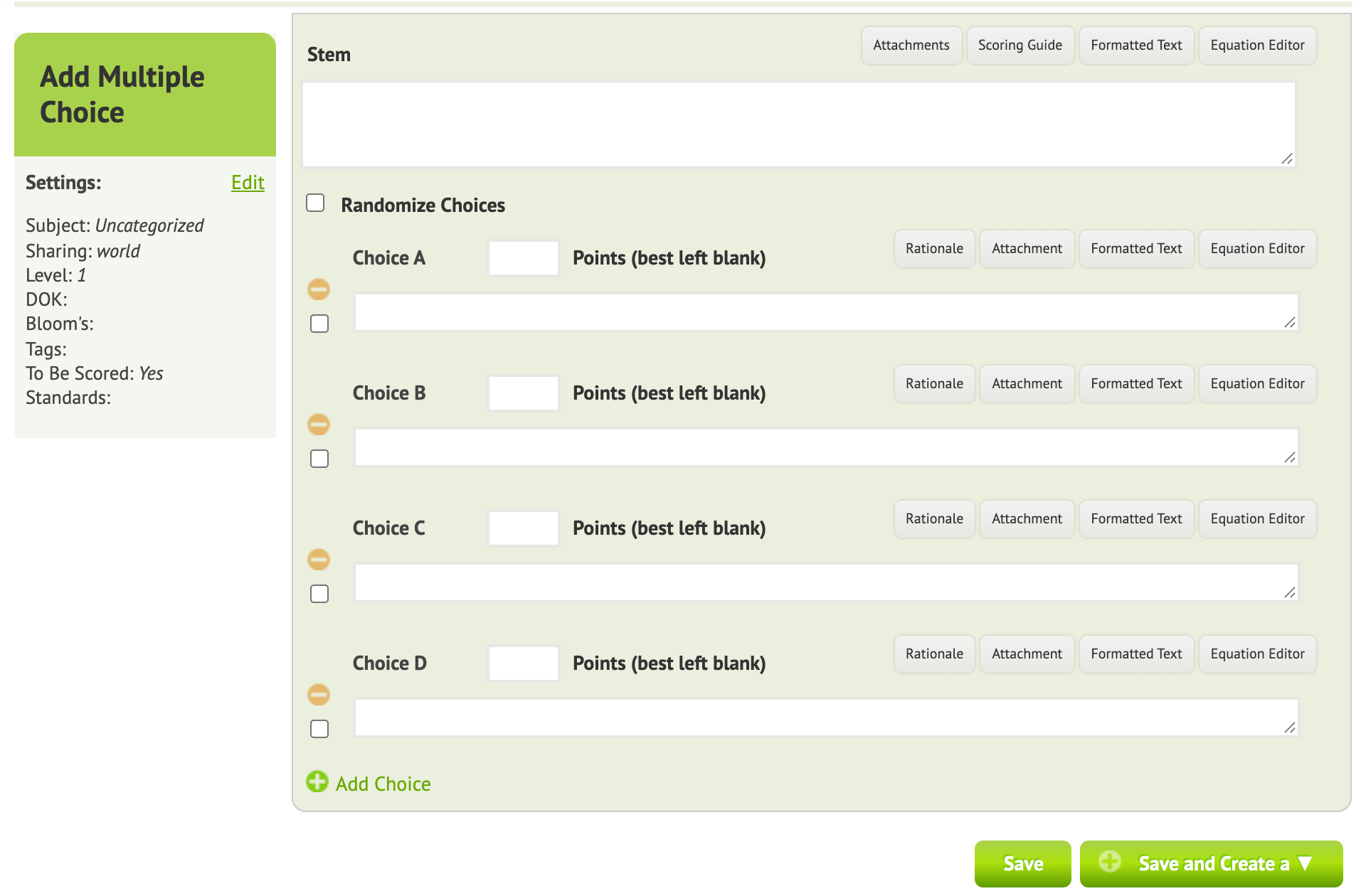
Leave Points blank on the choices. By default, a correct answer is worth 1 point.
Related item types
- True / False gives you True and False as the two choices. Mark the correct one.
- Multiple Response lets you mark more than one correct choice. See Multiple Response items.
- Inline choices. Put three underscores
___in the stem and the choices become a drop-down inside the sentence. See Inline Multiple Choice Items.
Settings and standards
On the right side, set the item’s Subject, Sharing and Tags, and add Standards so the item shows up in standards reports. See Assigning Standards to Test Items.
Save
Click Save and Add to Test. To keep going, use Save and Create a ▼ to save this item and start the next one, of any type.
Multiple Response items
Multiple response items are multiple choice items with more than one correct answer, such as Select all the prime numbers: 3, 4, 5, 6, 7, 8.
Naiku scores them all or nothing. A student gets the point only by selecting every correct option and no incorrect ones.
Want partial credit? Use the Grouped Yes/No item type instead, which scores each answer choice as correct or incorrect.