
Export Scores to the IC Gradebook
On this page
This uses Infinite Campus’s OneRoster grading, which your district turns on. If Export to Gradebook doesn’t offer to send scores, ask us at support@naiku.net and we’ll work with your district to set it up.
Send scores
- Open the test’s Class Results and choose Actions ▼ → Export to Gradebook.
- The Export Scores page lists your students by last name, with each student’s gradebook ID and the score that will be sent.
- Students who haven’t finished show Not finished and won’t be sent.
- On a test with retakes, the attempt that counts is sent. A student in the middle of a retake shows “Attempt n (retake in progress)”, and their earlier counted score is sent.
- Click Send all scores, or tick the students you want and click Send selected.
- Each row shows whether it was sent. If Campus turns down a score, the page tells you why.
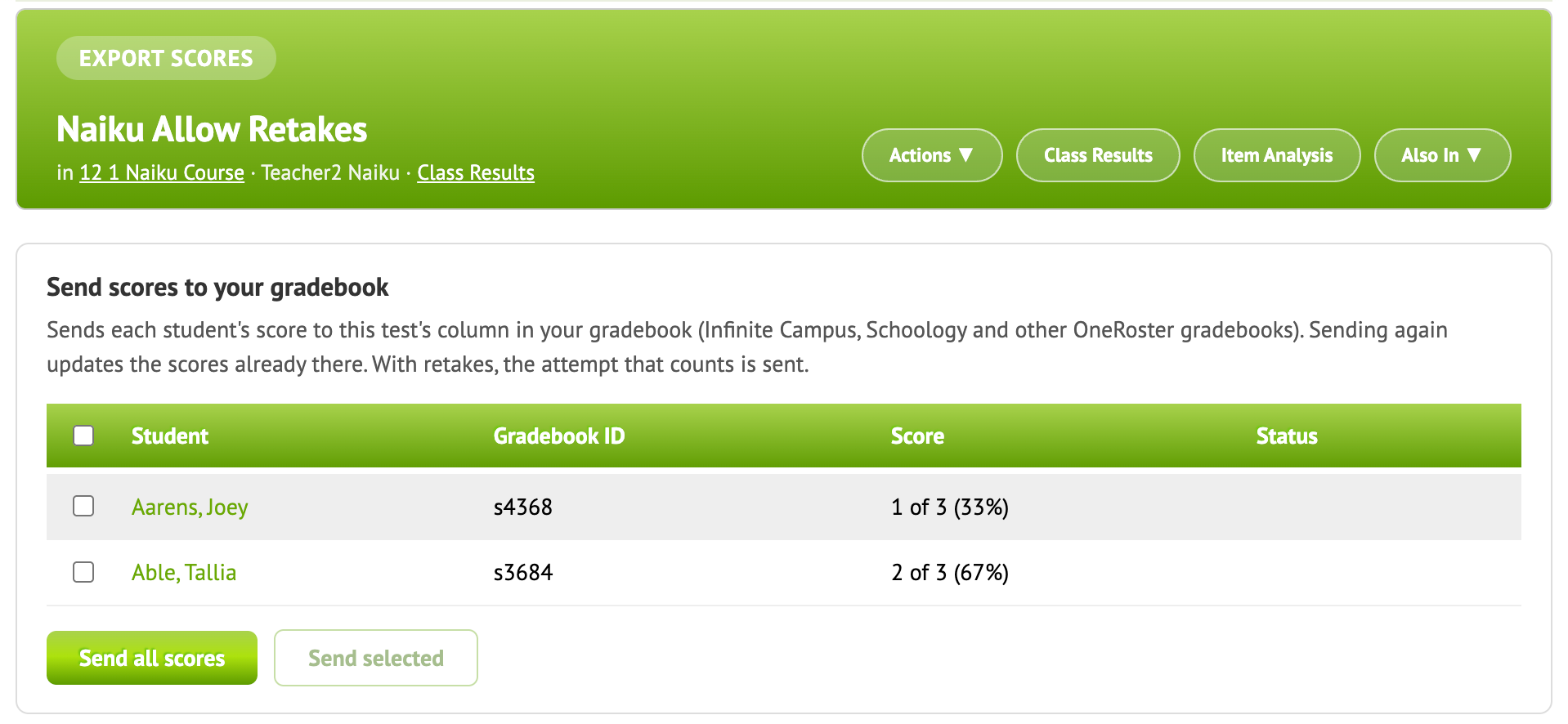
Sending again updates the same Campus assignment. It doesn’t create a second one.
In Infinite Campus
- Open your section’s gradebook, or refresh it if it’s already open.
- Click Uncategorized Assignments at the top.
- Pick the grading task or standard and the category for the new assignment, and save.
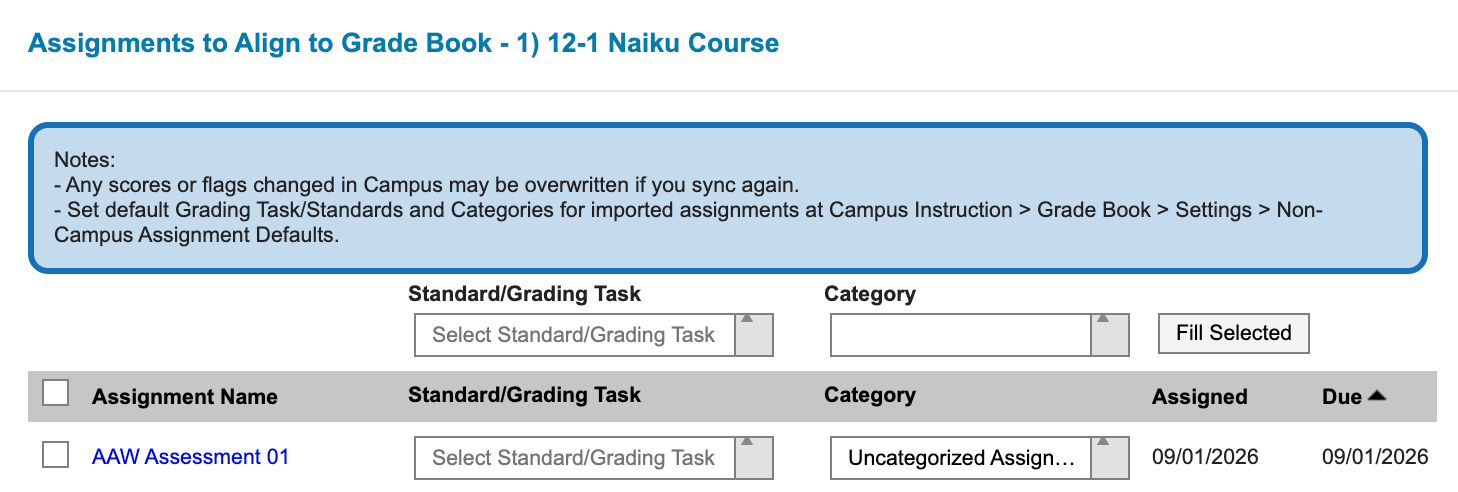
The assignment now appears in your gradebook with the Naiku scores.
Other ways out
The same page has Download a CSV, with Test Scores, Proficiency Scores and Item Scores, if you need the scores somewhere else.