
Transfer Scores into Your Gradebook
Using Infinite Campus? It has its own, better options. See Linking a Naiku Assessment to a Campus Assignment and Export Scores to the IC Gradebook.
Copy and paste from a CSV
This works with any gradebook.
- In Naiku, open the test’s Class Results and, under Student Scores, click Export CSV.
- Open the file in Excel, Numbers or Google Sheets. Sort it the same way as your gradebook, usually by last name.
- Copy the column of scores.
- In your gradebook, open the assignment, click the cell for the first student and paste.
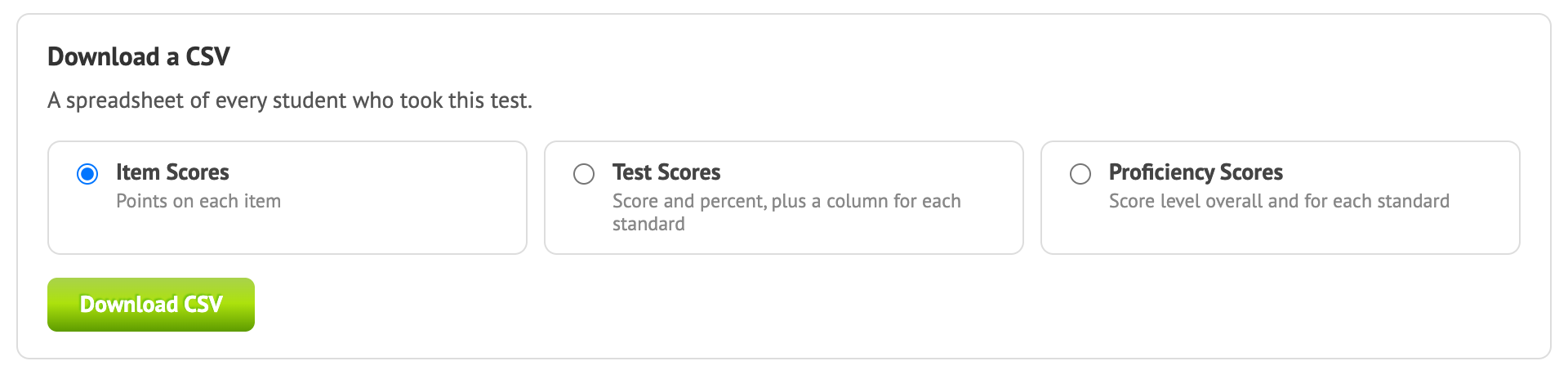
Check a few scores against Class Results before you save in your gradebook. If a student is missing from one list, the scores below them will shift.
Type scores in with a hot key
Naiku can also type a whole column of scores into your gradebook when you press one key.
Hot key settings, for when it's working again
To set it up, click your name at the top of Naiku to open your profile, and scroll to Gradebook Export Settings:
- Name Sorting: match the order your gradebook lists students in.
- Hot Key: the key that starts the transfer (F8 by default).
- Return Key: what moves your gradebook to the next student, Enter or Tab.
- Speed: slow it down if scores land in the wrong cells.
- Missing Assignments: skip students without a result, or enter 0 for them.
- Export scores as percentages rather than points: tick it if your gradebook wants percentages.
Then open Class Results in one tab, click the first student’s cell in your gradebook in another tab, and press the hot key. Troubleshooting Grade Transfers covers common problems.
Suggested settings
The default settings work for most gradebooks, including Schoology, Skyward and Blackboard:
| Setting | Suggested |
|---|---|
| Name Sorting | The same order your gradebook uses (usually last name) |
| Hot Key | F8 (try F7 if F8 does nothing) |
| Return Key | Enter |
| Speed | Medium |
| Missing Assignments | Skip |
If scores don’t land where they should:
- All scores go into one cell: set Speed to a slower setting.
- Scores skip a student or go sideways: change the Return Key between Enter and Tab.
- The wrong student gets a score: check Name Sorting, and check that both lists have the same students.